# Justfile
> Use when writing Justfiles to understand the latest syntax, features, and best practices
- Skill: `iloveitaly/justfile` (Agent Skill)
- Install (CLI): `npx skillmds@latest add iloveitaly/justfile`
- Raw SKILL.md: https://api.skillmd.com/api/skills/iloveitaly/justfile/raw
- Safety review: pending
- Works with: Claude Code, Claude.ai, OpenAI Codex
- Category: Coding & Dev Tools
- Author: iloveitaly (https://skillmd.com/u/iloveitaly)
- Updated: 2026-09-17
- Page: https://skillmd.com/skills/iloveitaly/justfile
---
# Writing Justfiles
The below readme is pulled from: https://github.com/casey/just/blob/master/README.md
It fully documents the Justfile syntax and system.
---
just
`just` is a handy way to save and run project-specific commands.
This readme is also available as a [book](https://just.systems/man/en/). The
book reflects the latest release, whereas the
[readme on GitHub](https://github.com/casey/just/blob/master/README.md)
reflects latest master.
(中文文档在 [这里](https://github.com/casey/just/blob/master/README.中文.md),
快看过来!)
Commands, called recipes, are stored in a file called `justfile` with syntax
inspired by `make`:
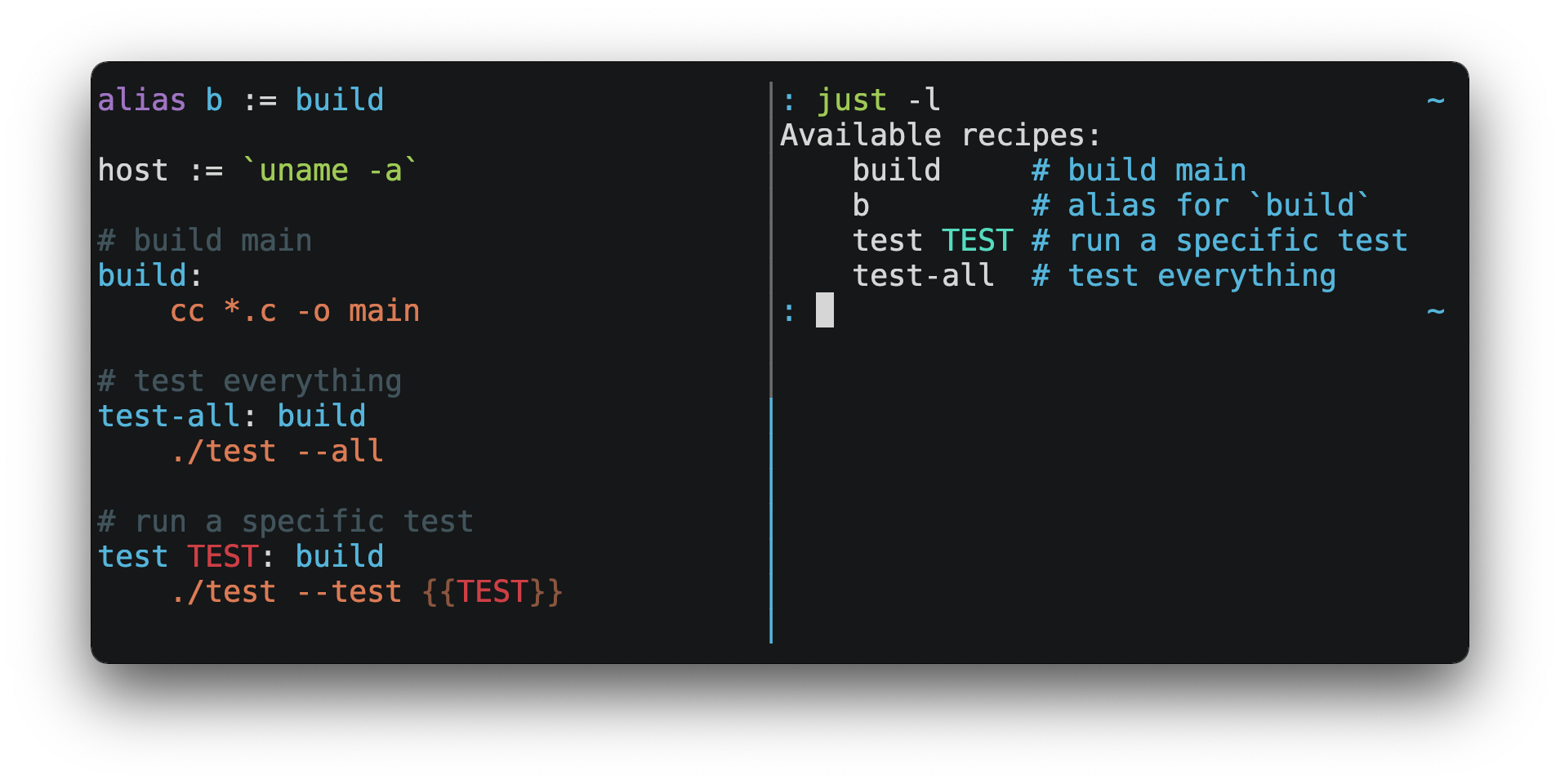
You can then run them with `just RECIPE`:
```console
$ just test-all
cc *.c -o main
./test --all
Yay, all your tests passed!
```
`just` has a ton of useful features, and many improvements over `make`:
- `just` is a command runner, not a build system, so it avoids much of
[`make`'s complexity and idiosyncrasies](#what-are-the-idiosyncrasies-of-make-that-just-avoids).
No need for `.PHONY` recipes!
- Linux, MacOS, Windows, and other reasonable unices are supported with no
additional dependencies. (Although if your system doesn't have an `sh`,
you'll need to [choose a different shell](#shell).)
- Errors are specific and informative, and syntax errors are reported along
with their source context.
- Recipes can accept [command line arguments](#recipe-parameters).
- Wherever possible, errors are resolved statically. Unknown recipes and
circular dependencies are reported before anything runs.
- `just` [loads `.env` files](#dotenv-settings), making it easy to populate
environment variables.
- Recipes can be [listed from the command line](#listing-available-recipes).
- Command line completion scripts are
[available for most popular shells](#shell-completion-scripts).
- Recipes can be written in
[arbitrary languages](#shebang-recipes), like Python or NodeJS.
- `just` can be invoked from any subdirectory, not just the directory that
contains the `justfile`.
- And [much more](https://just.systems/man/en/)!
If you need help with `just` please feel free to open an issue or ping me on
[Discord](https://discord.gg/ezYScXR). Feature requests and bug reports are
always welcome!
## Quick Start
See the installation section for how to install `just` on your computer. Try
running `just --version` to make sure that it's installed correctly.
For an overview of the syntax, check out
[this cheatsheet](https://cheatography.com/linux-china/cheat-sheets/justfile/).
Once `just` is installed and working, create a file named `justfile` in the
root of your project with the following contents:
```just
recipe-name:
echo 'This is a recipe!'
# this is a comment
another-recipe:
@echo 'This is another recipe.'
```
When you invoke `just` it looks for file `justfile` in the current directory
and upwards, so you can invoke it from any subdirectory of your project.
The search for a `justfile` is case insensitive, so any case, like `Justfile`,
`JUSTFILE`, or `JuStFiLe`, will work. `just` will also look for files with the
name `.justfile`, in case you'd like to hide a `justfile`.
Running `just` with no arguments runs the first recipe in the `justfile`:
```console
$ just
echo 'This is a recipe!'
This is a recipe!
```
One or more arguments specify the recipe(s) to run:
```console
$ just another-recipe
This is another recipe.
```
`just` prints each command to standard error before running it, which is why
`echo 'This is a recipe!'` was printed. This is suppressed for lines starting
with `@`, which is why `echo 'This is another recipe.'` was not printed.
Recipes stop running if a command fails. Here `cargo publish` will only run if
`cargo test` succeeds:
```just
publish:
cargo test
# tests passed, time to publish!
cargo publish
```
Recipes can depend on other recipes. Here the `test` recipe depends on the
`build` recipe, so `build` will run before `test`:
```just
build:
cc main.c foo.c bar.c -o main
test: build
./test
sloc:
@echo "`wc -l *.c` lines of code"
```
```console
$ just test
cc main.c foo.c bar.c -o main
./test
testing… all tests passed!
```
Recipes without dependencies will run in the order they're given on the command
line:
```console
$ just build sloc
cc main.c foo.c bar.c -o main
1337 lines of code
```
Dependencies will always run first, even if they are passed after a recipe that
depends on them:
```console
$ just test build
cc main.c foo.c bar.c -o main
./test
testing… all tests passed!
```
Recipes may depend on recipes in submodules:
```justfile
mod foo
baz: foo::bar
```
## Examples
A variety of `justfile`s can be found in the
[examples directory](https://github.com/casey/just/tree/master/examples) and on
[GitHub](https://github.com/search?q=path%3A**%2Fjustfile&type=code).
## Features
### The Default Recipe
When `just` is invoked without a recipe, it runs the recipe with the
`[default]` attribute, or the first recipe in the `justfile` if no recipe has
the `[default]` attribute.
This recipe might be the most frequently run command in the project, like
running the tests:
```just
test:
cargo test
```
You can also use dependencies to run multiple recipes by default:
```just
default: lint build test
build:
echo Building…
test:
echo Testing…
lint:
echo Linting…
```
If no recipe makes sense as the default recipe, you can add a recipe to the
beginning of your `justfile` that lists the available recipes:
```just
default:
just --list
```
### Listing Available Recipes
Recipes can be listed in alphabetical order with `just --list`:
```console
$ just --list
Available recipes:
build
test
deploy
lint
```
Recipes in [submodules](#modules1190) can be listed with `just --list PATH`,
where `PATH` is a space- or `::`-separated module path:
```
$ cat justfile
mod foo
$ cat foo.just
mod bar
$ cat bar.just
baz:
$ just --list foo bar
Available recipes:
baz
$ just --list foo::bar
Available recipes:
baz
```
`just --summary` is more concise:
```console
$ just --summary
build test deploy lint
```
Pass `--unsorted` to print recipes in the order they appear in the `justfile`:
```just
test:
echo 'Testing!'
build:
echo 'Building!'
```
```console
$ just --list --unsorted
Available recipes:
test
build
```
```console
$ just --summary --unsorted
test build
```
If you'd like `just` to default to listing the recipes in the `justfile`, you
can use this as your default recipe:
```just
default:
@just --list
```
Note that you may need to add `--justfile {{justfile()}}` to the line above.
Without it, if you executed `just -f /some/distant/justfile -d .` or
`just -f ./non-standard-justfile`, the plain `just --list` inside the recipe
would not necessarily use the file you provided. It would try to find a
justfile in your current path, maybe even resulting in a `No justfile found`
error.
The heading text can be customized with `--list-heading`:
```console
$ just --list --list-heading $'Cool stuff…\n'
Cool stuff…
test
build
```
And the indentation can be customized with `--list-prefix`:
```console
$ just --list --list-prefix ····
Available recipes:
····test
····build
```
The argument to `--list-heading` replaces both the heading and the newline
following it, so it should contain a newline if non-empty. It works this way so
you can suppress the heading line entirely by passing the empty string:
```console
$ just --list --list-heading ''
test
build
```
### Invoking Multiple Recipes
Multiple recipes may be invoked on the command line at once:
```just
build:
make web
serve:
python3 -m http.server -d out 8000
```
```console
$ just build serve
make web
python3 -m http.server -d out 8000
```
Keep in mind that recipes with parameters will swallow arguments, even if they
match the names of other recipes:
```just
build project:
make {{project}}
serve:
python3 -m http.server -d out 8000
```
```console
$ just build serve
make: *** No rule to make target `serve'. Stop.
```
The `--one` flag can be used to restrict command-line invocations to a single
recipe:
```console
$ just --one build serve
error: Expected 1 command-line recipe invocation but found 2.
```
### Working Directory
By default, recipes run with the working directory set to the directory that
contains the `justfile`.
The `[no-cd]` attribute can be used to make recipes run with the working
directory set to directory in which `just` was invoked.
```just
@foo:
pwd
[no-cd]
@bar:
pwd
```
```console
$ cd subdir
$ just foo
/
$ just bar
/subdir
```
You can override the working directory for all recipes with
`set working-directory := '…'`:
```just
set working-directory := 'bar'
@foo:
pwd
```
```console
$ pwd
/home/bob
$ just foo
/home/bob/bar
```
You can override the working directory for a specific recipe with the
`working-directory` attribute1.38.0:
```just
[working-directory: 'bar']
@foo:
pwd
```
```console
$ pwd
/home/bob
$ just foo
/home/bob/bar
```
The argument to the `working-directory` setting or `working-directory`
attribute may be absolute or relative. If it is relative it is interpreted
relative to the default working directory.
### Aliases
Aliases allow recipes to be invoked on the command line with alternative names:
```just
alias b := build
build:
echo 'Building!'
```
```console
$ just b
echo 'Building!'
Building!
```
The target of an alias may be a recipe in a submodule:
```justfile
mod foo
alias baz := foo::bar
```
### Settings
Settings control interpretation and execution. Each setting may be specified at
most once, anywhere in the `justfile`.
For example:
```just
set shell := ["zsh", "-cu"]
foo:
# this line will be run as `zsh -cu 'ls **/*.txt'`
ls **/*.txt
```
#### Table of Settings
| Name | Value | Default | Description |
|------|-------|---------|-------------|
| `allow-duplicate-recipes` | boolean | `false` | Allow recipes appearing later in a `justfile` to override earlier recipes with the same name. |
| `allow-duplicate-variables` | boolean | `false` | Allow variables appearing later in a `justfile` to override earlier variables with the same name. |
| `dotenv-filename` | string | - | Load a `.env` file with a custom name, if present. |
| `dotenv-load` | boolean | `false` | Load a `.env` file, if present. |
| `dotenv-override` | boolean | `false` | Override existing environment variables with values from the `.env` file. |
| `dotenv-path` | string | - | Load a `.env` file from a custom path and error if not present. Overrides `dotenv-filename`. |
| `dotenv-required` | boolean | `false` | Error if a `.env` file isn't found. |
| `export` | boolean | `false` | Export all variables as environment variables. |
| `fallback` | boolean | `false` | Search `justfile` in parent directory if the first recipe on the command line is not found. |
| `ignore-comments` | boolean | `false` | Ignore recipe lines beginning with `#`. |
| `positional-arguments` | boolean | `false` | Pass positional arguments. |
| `quiet` | boolean | `false` | Disable echoing recipe lines before executing. |
| `script-interpreter`1.33.0 | `[COMMAND, ARGS…]` | `['sh', '-eu']` | Set command used to invoke recipes with empty `[script]` attribute. |
| `shell` | `[COMMAND, ARGS…]` | - | Set command used to invoke recipes and evaluate backticks. |
| `tempdir` | string | - | Create temporary directories in `tempdir` instead of the system default temporary directory. |
| `unstable`1.31.0 | boolean | `false` | Enable unstable features. |
| `windows-powershell` | boolean | `false` | Use PowerShell on Windows as default shell. (Deprecated. Use `windows-shell` instead. |
| `windows-shell` | `[COMMAND, ARGS…]` | - | Set the command used to invoke recipes and evaluate backticks. |
| `working-directory`1.33.0 | string | - | Set the working directory for recipes and backticks, relative to the default working directory. |
Boolean settings can be written as:
```justfile
set NAME
```
Which is equivalent to:
```justfile
set NAME := true
```
Non-boolean settings can be set to both strings and
expressions.1.46.0
However, because settings affect the behavior of backticks and many functions,
those expressions may not contain backticks or function calls, directly or
transitively via reference.
#### Allow Duplicate Recipes
If `allow-duplicate-recipes` is set to `true`, defining multiple recipes with
the same name is not an error and the last definition is used. Defaults to
`false`.
```just
set allow-duplicate-recipes
@foo:
echo foo
@foo:
echo bar
```
```console
$ just foo
bar
```
#### Allow Duplicate Variables
If `allow-duplicate-variables` is set to `true`, defining multiple variables
with the same name is not an error and the last definition is used. Defaults to
`false`.
```just
set allow-duplicate-variables
a := "foo"
a := "bar"
@foo:
echo {{a}}
```
```console
$ just foo
bar
```
#### Dotenv Settings
If any of `dotenv-load`, `dotenv-filename`, `dotenv-override`, `dotenv-path`,
or `dotenv-required` are set, `just` will try to load environment variables
from a file.
If `dotenv-path` is set, `just` will look for a file at the given path, which
may be absolute, or relative to the working directory.
The command-line option `--dotenv-path`, short form `-E`, can be used to set or
override `dotenv-path` at runtime.
If `dotenv-filename` is set `just` will look for a file at the given path,
relative to the working directory and each of its ancestors.
If `dotenv-filename` is not set, but `dotenv-load` or `dotenv-required` are
set, just will look for a file named `.env`, relative to the working directory
and each of its ancestors.
`dotenv-filename` and `dotenv-path` are similar, but `dotenv-path` is only
checked relative to the working directory, whereas `dotenv-filename` is checked
relative to the working directory and each of its ancestors.
It is not an error if an environment file is not found, unless
`dotenv-required` is set.
The loaded variables are environment variables, not `just` variables, and so
must be accessed using `$VARIABLE_NAME` in recipes and backticks.
If `dotenv-override` is set, variables from the environment file will override
existing environment variables.
For example, if your `.env` file contains:
```console
# a comment, will be ignored
DATABASE_ADDRESS=localhost:6379
SERVER_PORT=1337
```
And your `justfile` contains:
```just
set dotenv-load
serve:
@echo "Starting server with database $DATABASE_ADDRESS on port $SERVER_PORT…"
./server --database $DATABASE_ADDRESS --port $SERVER_PORT
```
`just serve` will output:
```console
$ just serve
Starting server with database localhost:6379 on port 1337…
./server --database $DATABASE_ADDRESS --port $SERVER_PORT
```
#### Export
The `export` setting causes all `just` variables to be exported as environment
variables. Defaults to `false`.
```just
set export
a := "hello"
@foo b:
echo $a
echo $b
```
```console
$ just foo goodbye
hello
goodbye
```
#### Positional Arguments
If `positional-arguments` is `true`, recipe arguments will be passed as
positional arguments to commands. For linewise recipes, argument `$0` will be
the name of the recipe.
For example, running this recipe:
```just
set positional-arguments
@foo bar:
echo $0
echo $1
```
Will produce the following output:
```console
$ just foo hello
foo
hello
```
When using an `sh`-compatible shell, such as `bash` or `zsh`, `$@` expands to
the positional arguments given to the recipe, starting from one. When used
within double quotes as `"$@"`, arguments including whitespace will be passed
on as if they were double-quoted. That is, `"$@"` is equivalent to `"$1" "$2"`…
When there are no positional parameters, `"$@"` and `$@` expand to nothing
(i.e., they are removed).
This example recipe will print arguments one by one on separate lines:
```just
set positional-arguments
@test *args='':
bash -c 'while (( "$#" )); do echo - $1; shift; done' -- "$@"
```
Running it with *two* arguments:
```console
$ just test foo "bar baz"
- foo
- bar baz
```
Positional arguments may also be turned on on a per-recipe basis with the
`[positional-arguments]` attribute1.29.0:
```just
[positional-arguments]
@foo bar:
echo $0
echo $1
```
Note that PowerShell does not handle positional arguments in the same way as
other shells, so turning on positional arguments will likely break recipes that
use PowerShell.
If using PowerShell 7.4 or better, the `-CommandWithArgs` flag will make
positional arguments work as expected:
```just
set shell := ['pwsh.exe', '-CommandWithArgs']
set positional-arguments
print-args a b c:
Write-Output @($args[1..($args.Count - 1)])
```
#### Shell
The `shell` setting controls the command used to invoke recipe lines and
backticks. Shebang recipes are unaffected. The default shell is `sh -cu`.
```just
# use python3 to execute recipe lines and backticks
set shell := ["python3", "-c"]
# use print to capture result of evaluation
foos := `print("foo" * 4)`
foo:
print("Snake snake snake snake.")
print("{{foos}}")
```
`just` passes the command to be executed as an argument. Many shells will need
an additional flag, often `-c`, to make them evaluate the first argument.
##### Windows Shell
`just` uses `sh` on Windows by default. To use a different shell on Windows,
use `windows-shell`:
```just
set windows-shell := ["powershell.exe", "-NoLogo", "-Command"]
hello:
Write-Host "Hello, world!"
```
See
[powershell.just](https://github.com/casey/just/blob/master/examples/powershell.just)
for a justfile that uses PowerShell on all platforms.
##### Windows PowerShell
*`set windows-powershell` uses the legacy `powershell.exe` binary, and is no
longer recommended. See the `windows-shell` setting above for a more flexible
way to control which shell is used on Windows.*
`just` uses `sh` on Windows by default. To use `powershell.exe` instead, set
`windows-powershell` to true.
```just
set windows-powershell := true
hello:
Write-Host "Hello, world!"
```
##### Python 3
```just
set shell := ["python3", "-c"]
```
##### Bash
```just
set shell := ["bash", "-uc"]
```
##### Z Shell
```just
set shell := ["zsh", "-uc"]
```
##### Fish
```just
set shell := ["fish", "-c"]
```
##### Nushell
```just
set shell := ["nu", "-c"]
```
If you want to change the default table mode to `light`:
```just
set shell := ['nu', '-m', 'light', '-c']
```
*[Nushell](https://github.com/nushell/nushell) was written in Rust, and **has
cross-platform support for Windows / macOS and Linux**.*
### Documentation Comments
Comments immediately preceding a recipe will appear in `just --list`:
```just
# build stuff
build:
./bin/build
# test stuff
test:
./bin/test
```
```console
$ just --list
Available recipes:
build # build stuff
test # test stuff
```
The `[doc]` attribute can be used to set or suppress a recipe's doc comment:
```just
# This comment won't appear
[doc('Build stuff')]
build:
./bin/build
# This one won't either
[doc]
test:
./bin/test
```
```console
$ just --list
Available recipes:
build # Build stuff
test
```
### Expressions and Substitutions
Various operators and function calls are supported in expressions, which may be
used in assignments, default recipe arguments, and inside recipe body `{{…}}`
substitutions.
```just
tmpdir := `mktemp -d`
version := "0.2.7"
tardir := tmpdir / "awesomesauce-" + version
tarball := tardir + ".tar.gz"
config := quote(config_dir() / ".project-config")
publish:
rm -f {{tarball}}
mkdir {{tardir}}
cp README.md *.c {{ config }} {{tardir}}
tar zcvf {{tarball}} {{tardir}}
scp {{tarball}} me@server.com:release/
rm -rf {{tarball}} {{tardir}}
```
#### Concatenation
The `+` operator returns the left-hand argument concatenated with the
right-hand argument:
```just
foobar := 'foo' + 'bar'
```
#### Logical Operators
The logical operators `&&` and `||` can be used to coalesce string
values1.37.0, similar to Python's `and` and `or`. These operators
consider the empty string `''` to be false, and all other strings to be true.
These operators are currently unstable.
The `&&` operator returns the empty string if the left-hand argument is the
empty string, otherwise it returns the right-hand argument:
```justfile
foo := '' && 'goodbye' # ''
bar := 'hello' && 'goodbye' # 'goodbye'
```
The `||` operator returns the left-hand argument if it is non-empty, otherwise
it returns the right-hand argument:
```justfile
foo := '' || 'goodbye' # 'goodbye'
bar := 'hello' || 'goodbye' # 'hello'
```
#### Joining Paths
The `/` operator can be used to join two strings with a slash:
```just
foo := "a" / "b"
```
```
$ just --evaluate foo
a/b
```
Note that a `/` is added even if one is already present:
```just
foo := "a/"
bar := foo / "b"
```
```
$ just --evaluate bar
a//b
```
Absolute paths can also be constructed1.5.0:
```just
foo := / "b"
```
```
$ just --evaluate foo
/b
```
The `/` operator uses the `/` character, even on Windows. Thus, using the `/`
operator should be avoided with paths that use universal naming convention
(UNC), i.e., those that start with `\?`, since forward slashes are not
supported with UNC paths.
#### Escaping `{{`
To write a recipe containing `{{`, use `{{{{`:
```just
braces:
echo 'I {{{{LOVE}} curly braces!'
```
(An unmatched `}}` is ignored, so it doesn't need to be escaped.)
Another option is to put all the text you'd like to escape inside of an
interpolation:
```just
braces:
echo '{{'I {{LOVE}} curly braces!'}}'
```
Yet another option is to use `{{ "{{" }}`:
```just
braces:
echo 'I {{ "{{" }}LOVE}} curly braces!'
```
### Strings
`'single'`, `"double"`, and `'''triple'''` quoted string literals are
supported. Unlike in recipe bodies, `{{…}}` interpolations are not supported
inside strings.
Double-quoted strings support escape sequences:
```just
carriage-return := "\r"
double-quote := "\""
newline := "\n"
no-newline := "\
"
slash := "\\"
tab := "\t"
unicode-codepoint := "\u{1F916}"
```
```console
$ just --evaluate
"arriage-return := "
double-quote := """
newline := "
"
no-newline := ""
slash := "\"
tab := " "
unicode-codepoint := "🤖"
```
The unicode character escape sequence `\u{…}`1.36.0 accepts up to
six hex digits.
Strings may contain line breaks:
```just
single := '
hello
'
double := "
goodbye
"
```
Single-quoted strings do not recognize escape sequences:
```just
escapes := '\t\n\r\"'
```
```console
$ just --evaluate
escapes := "\t\n\r\"\\"
```
Indented versions of both single- and double-quoted strings, delimited by
triple single- or double-quotes, are supported. Indented string lines are
stripped of a leading line break, and leading whitespace common to all
non-blank lines:
```just
# this string will evaluate to `foo\nbar\n`
x := '''
foo
bar
'''
# this string will evaluate to `abc\n wuv\nxyz\n`
y := """
abc
wuv
xyz
"""
```
Similar to unindented strings, indented double-quoted strings process escape
sequences, and indented single-quoted strings ignore escape sequences. Escape
sequence processing takes place after unindentation. The unindentation
algorithm does not take escape-sequence produced whitespace or newlines into
account.
#### Shell-expanded strings
Strings prefixed with `x` are shell expanded1.27.0:
```justfile
foobar := x'~/$FOO/${BAR}'
```
| Value | Replacement |
|------|-------------|
| `$VAR` | value of environment variable `VAR` |
| `${VAR}` | value of environment variable `VAR` |
| `${VAR:-DEFAULT}` | value of environment variable `VAR`, or `DEFAULT` if `VAR` is not set |
| Leading `~` | path to current user's home directory |
| Leading `~USER` | path to `USER`'s home directory |
This expansion is performed at compile time, so variables from `.env` files and
exported `just` variables cannot be used. However, this allows shell expanded
strings to be used in places like settings and import paths, which cannot
depend on `just` variables and `.env` files.
#### Format strings
Strings prefixed with `f` are format strings1.44.0:
```justfile
name := "world"
message := f'Hello, {{name}}!'
```
Format strings may contain interpolations delimited with `{{…}}` that contain
expressions. Format strings evaluate to the concatenated string fragments and
evaluated expressions.
Use `{{{{` to include a literal `{{` in a format string:
```justfile
foo := f'I {{{{LOVE} curly braces!'
```
### Ignoring Errors
Normally, if a command returns a non-zero exit status, execution will stop. To
continue execution after a command, even if it fails, prefix the command with
`-`:
```just
foo:
-cat foo
echo 'Done!'
```
```console
$ just foo
cat foo
cat: foo: No such file or directory
echo 'Done!'
Done!
```
### Functions
`just` provides many built-in functions for use in expressions, including
recipe body `{{…}}` substitutions, assignments, and default parameter values.
All functions ending in `_directory` can be abbreviated to `_dir`. So
`home_directory()` can also be written as `home_dir()`. In addition,
`invocation_directory_native()` can be abbreviated to
`invocation_dir_native()`.
#### System Information
- `arch()` — Instruction set architecture. Possible values are: `"aarch64"`,
`"arm"`, `"asmjs"`, `"hexagon"`, `"mips"`, `"msp430"`, `"powerpc"`,
`"powerpc64"`, `"s390x"`, `"sparc"`, `"wasm32"`, `"x86"`, `"x86_64"`, and
`"xcore"`.
- `num_cpus()`1.15.0 - Number of logical CPUs.
- `os()` — Operating system. Possible values are: `"android"`, `"bitrig"`,
`"dragonfly"`, `"emscripten"`, `"freebsd"`, `"haiku"`, `"ios"`, `"linux"`,
`"macos"`, `"netbsd"`, `"openbsd"`, `"solaris"`, and `"windows"`.
- `os_family()` — Operating system family; possible values are: `"unix"` and
`"windows"`.
For example:
```just
system-info:
@echo "This is an {{arch()}} machine".
```
```console
$ just system-info
This is an x86_64 machine
```
The `os_family()` function can be used to create cross-platform `justfile`s
that work on various operating systems. For an example, see
[cross-platform.just](https://github.com/casey/just/blob/master/examples/cross-platform.just)
file.
#### External Commands
- `shell(command, args...)`1.27.0 returns the standard output of shell script
`command` with zero or more positional arguments `args`. The shell used to
interpret `command` is the same shell that is used to evaluate recipe lines,
and can be changed with `set shell := […]`.
`command` is passed as the first argument, so if the command is `'echo $@'`,
the full command line, with the default shell command `sh -cu` and `args`
`'foo'` and `'bar'` will be:
```
'sh' '-cu' 'echo $@' 'echo $@' 'foo' 'bar'
```
This is so that `$@` works as expected, and `$1` refers to the first
argument. `$@` does not include the first positional argument, which is
expected to be the name of the program being run.
```just
# arguments can be variables or expressions
file := '/sys/class/power_supply/BAT0/status'
bat0stat := shell('cat $1', file)
# commands can be variables or expressions
command := 'wc -l'
output := shell(command + ' "$1"', 'main.c')
# arguments referenced by the shell command must be used
empty := shell('echo', 'foo')
full := shell('echo $1', 'foo')
error := shell('echo $1')
```
```just
# Using python as the shell. Since `python -c` sets `sys.argv[0]` to `'-c'`,
# the first "real" positional argument will be `sys.argv[2]`.
set shell := ["python3", "-c"]
olleh := shell('import sys; print(sys.argv[2][::-1])', 'hello')
```
#### Environment Variables
- `env(key)`1.15.0 — Retrieves the environment variable with name `key`, aborting
if it is not present.
```just
home_dir := env('HOME')
test:
echo "{{home_dir}}"
```
```console
$ just
/home/user1
```
- `env(key, default)`1.15.0 — Retrieves the environment variable with
name `key`, returning `default` if it is not present.
- `env_var(key)` — Deprecated alias for `env(key)`.
- `env_var_or_default(key, default)` — Deprecated alias for `env(key, default)`.
A default can be substituted for an empty environment variable value with the
`||` operator, currently unstable:
```just
set unstable
foo := env('FOO', '') || 'DEFAULT_VALUE'
```
#### Executables
- `require(name)`1.39.0 — Search directories in the `PATH`
environment variable for the executable `name` and return its full path, or
halt with an error if no executable with `name` exists.
```just
bash := require("bash")
@test:
echo "bash: '{{bash}}'"
```
```console
$ just
bash: '/bin/bash'
```
- `which(name)`1.39.0 — Search directories in the `PATH` environment
variable for the executable `name` and return its full path, or the empty
string if no executable with `name` exists. Currently unstable.
```just
set unstable
bosh := which("bosh")
@test:
echo "bosh: '{{bosh}}'"
```
```console
$ just
bosh: ''
```
#### Invocation Information
- `is_dependency()` - Returns the string `true` if the current recipe is being
run as a dependency of another recipe, rather than being run directly,
otherwise returns the string `false`.
#### Invocation Directory
- `invocation_directory()` - Retrieves the absolute path to the current
directory when `just` was invoked, before `just` changed it (chdir'd) prior
to executing commands. On Windows, `invocation_directory()` uses `cygpath` to
convert the invocation directory to a Cygwin-compatible `/`-separated path.
Use `invocation_directory_native()` to return the verbatim invocation
directory on all platforms.
For example, to call `rustfmt` on files just under the "current directory"
(from the user/invoker's perspective), use the following rule:
```just
rustfmt:
find {{invocation_directory()}} -name \*.rs -exec rustfmt {} \;
```
Alternatively, if your command needs to be run from the current directory, you
could use (e.g.):
```just
build:
cd {{invocation_directory()}}; ./some_script_that_needs_to_be_run_from_here
```
- `invocation_directory_native()` - Retrieves the absolute path to the current
directory when `just` was invoked, before `just` changed it (chdir'd) prior
to executing commands.
#### Justfile and Justfile Directory
- `justfile()` - Retrieves the path of the current `justfile`.
- `justfile_directory()` - Retrieves the path of the parent directory of the
current `justfile`.
For example, to run a command relative to the location of the current
`justfile`:
```just
script:
{{justfile_directory()}}/scripts/some_script
```
#### Source and Source Directory
- `source_file()`1.27.0 - Retrieves the path of the current source file.
- `source_directory()`1.27.0 - Retrieves the path of the parent directory of the
current source file.
`source_file()` and `source_directory()` behave the same as `justfile()` and
`justfile_directory()` in the root `justfile`, but will return the path and
directory, respectively, of the current `import` or `mod` source file when
called from within an import or submodule.
#### Just Executable
- `just_executable()` - Absolute path to the `just` executable.
For example:
```just
executable:
@echo The executable is at: {{just_executable()}}
```
```console
$ just
The executable is at: /bin/just
```
#### Just Process ID
- `just_pid()` - Process ID of the `just` executable.
For example:
```just
pid:
@echo The process ID is: {{ just_pid() }}
```
```console
$ just
The process ID is: 420
```
#### String Manipulation
- `append(suffix, s)`1.27.0 Append `suffix` to whitespace-separated
strings in `s`. `append('/src', 'foo bar baz')` → `'foo/src bar/src baz/src'`
- `prepend(prefix, s)`1.27.0 Prepend `prefix` to
whitespace-separated strings in `s`. `prepend('src/', 'foo bar baz')` →
`'src/foo src/bar src/baz'`
- `encode_uri_component(s)`1.27.0 - Percent-encode characters in `s`
except `[A-Za-z0-9_.!~*'()-]`, matching the behavior of the
[JavaScript `encodeURIComponent` function](https://developer.mozilla.org/en-US/docs/Web/JavaScript/Reference/Global_Objects/encodeURIComponent).
- `quote(s)` - Replace all single quotes with `'''` and prepend and append
single quotes to `s`. This is sufficient to escape special characters for
many shells, including most Bourne shell descendants.
- `replace(s, from, to)` - Replace all occurrences of `from` in `s` to `to`.
- `replace_regex(s, regex, replacement)` - Replace all occurrences of `regex`
in `s` to `replacement`. Regular expressions are provided by the
[Rust `regex` crate](https://docs.rs/regex/latest/regex/). See the
[syntax documentation](https://docs.rs/regex/latest/regex/#syntax) for usage
examples. Capture groups are supported. The `replacement` string uses
[Replacement string syntax](https://docs.rs/regex/latest/regex/struct.Regex.html#replacement-string-syntax).
- `trim(s)` - Remove leading and trailing whitespace from `s`.
- `trim_end(s)` - Remove trailing whitespace from `s`.
- `trim_end_match(s, substring)` - Remove suffix of `s` matching `substring`.
- `trim_end_matches(s, substring)` - Repeatedly remove suffixes of `s` matching
`substring`.
- `trim_start(s)` - Remove leading whitespace from `s`.
- `trim_start_match(s, substring)` - Remove prefix of `s` matching `substring`.
- `trim_start_matches(s, substring)` - Repeatedly remove prefixes of `s`
matching `substring`.
#### Case Conversion
- `capitalize(s)`1.7.0 - Convert first character of `s` to uppercase
and the rest to lowercase.
- `kebabcase(s)`1.7.0 - Convert `s` to `kebab-case`.
- `lowercamelcase(s)`1.7.0 - Convert `s` to `lowerCamelCase`.
- `lowercase(s)` - Convert `s` to lowercase.
- `shoutykebabcase(s)`1.7.0 - Convert `s` to `SHOUTY-KEBAB-CASE`.
- `shoutysnakecase(s)`1.7.0 - Convert `s` to `SHOUTY_SNAKE_CASE`.
- `snakecase(s)`1.7.0 - Convert `s` to `snake_case`.
- `titlecase(s)`1.7.0 - Convert `s` to `Title Case`.
- `uppercamelcase(s)`1.7.0 - Convert `s` to `UpperCamelCase`.
- `uppercase(s)` - Convert `s` to uppercase.
#### Path Manipulation
##### Fallible
- `absolute_path(path)` - Absolute path to relative `path` in the working
directory. `absolute_path("./bar.txt")` in directory `/foo` is
`/foo/bar.txt`.
- `canonicalize(path)`1.24.0 - Canonicalize `path` by resolving symlinks and removing
`.`, `..`, and extra `/`s where possible.
- `extension(path)` - Extension of `path`. `extension("/foo/bar.txt")` is
`txt`.
- `file_name(path)` - File name of `path` with any leading directory components
removed. `file_name("/foo/bar.txt")` is `bar.txt`.
- `file_stem(path)` - File name of `path` without extension.
`file_stem("/foo/bar.txt")` is `bar`.
- `parent_directory(path)` - Parent directory of `path`.
`parent_directory("/foo/bar.txt")` is `/foo`.
- `without_extension(path)` - `path` without extension.
`without_extension("/foo/bar.txt")` is `/foo/bar`.
These functions can fail, for example if a path does not have an extension,
which will halt execution.
##### Infallible
- `clean(path)` - Simplify `path` by removing extra path separators,
intermediate `.` components, and `..` where possible. `clean("foo//bar")` is
`foo/bar`, `clean("foo/..")` is `.`, `clean("foo/./bar")` is `foo/bar`.
- `join(a, b…)` - *This function uses `/` on Unix and `\` on Windows, which can
be lead to unwanted behavior. The `/` operator, e.g., `a / b`, which always
uses `/`, should be considered as a replacement unless `\`s are specifically
desired on Windows.* Join path `a` with path `b`. `join("foo/bar", "baz")` is
`foo/bar/baz`. Accepts two or more arguments.
#### Filesystem Access
- `path_exists(path)` - Returns `true` if the path points at an existing entity
and `false` otherwise. Traverses symbolic links, and returns `false` if the
path is inaccessible or points to a broken symlink.
- `read(path)`1.39.0 - Returns the content of file at `path` as
string.
##### Error Reporting
- `error(message)` - Abort execution and report error `message` to user.
#### UUID and Hash Generation
- `blake3(string)`1.25.0 - Return [BLAKE3][blake3] hash of `string` as hexadecimal string.
- `blake3_file(path)`1.25.0 - Return [BLAKE3][blake3] hash of file at `path` as hexadecimal
string.
- `sha256(string)` - Return the SHA-256 hash of `string` as hexadecimal string.
- `sha256_file(path)` - Return SHA-256 hash of file at `path` as hexadecimal
string.
- `uuid()` - Generate a random version 4 UUID.
[blake3]: https://github.com/BLAKE3-team/BLAKE3/
#### Random
- `choose(n, alphabet)`1.27.0 - Generate a string of `n` randomly
selected characters from `alphabet`, which may not contain repeated
characters. For example, `choose('64', HEX)` will generate a random
64-character lowercase hex string.
#### Datetime
- `datetime(format)`1.30.0 - Return local time with `format`.
- `datetime_utc(format)`1.30.0 - Return UTC time with `format`.
The arguments to `datetime` and `datetime_utc` are `strftime`-style format
strings, see the
[`chrono` library docs](https://docs.rs/chrono/latest/chrono/format/strftime/index.html)
for details.
#### Semantic Versions
- `semver_matches(version, requirement)`1.16.0 - Check whether a
[semantic `version`](https://semver.org), e.g., `"0.1.0"` matches a
`requirement`, e.g., `">=0.1.0"`, returning `"true"` if so and `"false"`
otherwise.
#### Style
- `style(name)`1.37.0 - Return a named terminal display attribute
escape sequence used by `just`. Unlike terminal display attribute escape
sequence constants, which contain standard colors and styles, `style(name)`
returns an escape sequence used by `just` itself, and can be used to make
recipe output match `just`'s own output.
Recognized values for `name` are `'command'`, for echoed recipe lines,
`error`, and `warning`.
For example, to style an error message:
```just
scary:
@echo '{{ style("error") }}OH NO{{ NORMAL }}'
```
##### User Directories1.23.0
These functions return paths to user-specific directories for things like
configuration, data, caches, executables, and the user's home directory.
On Unix, these functions follow the
[XDG Base Directory Specification](https://specifications.freedesktop.org/basedir-spec/basedir-spec-latest.html).
On MacOS and Windows, these functions return the system-specified user-specific
directories. For example, `cache_directory()` returns `~/Library/Caches` on
MacOS and `{FOLDERID_LocalAppData}` on Windows.
See the [`dirs`](https://docs.rs/dirs/latest/dirs/index.html) crate for more
details.
- `cache_directory()` - The user-specific cache directory.
- `config_directory()` - The user-specific configuration directory.
- `config_local_directory()` - The local user-specific configuration directory.
- `data_directory()` - The user-specific data directory.
- `data_local_directory()` - The local user-specific data directory.
- `executable_directory()` - The user-specific executable directory.
- `home_directory()` - The user's home directory.
If you would like to use XDG base directories on all platforms you can use the
`env(…)` function with the appropriate environment variable and fallback,
although note that the XDG specification requires ignoring non-absolute paths,
so for full compatibility with spec-compliant applications, you would need to
do:
```just
xdg_config_dir := if env('XDG_CONFIG_HOME', '') =~ '^/' {
env('XDG_CONFIG_HOME')
} else {
home_directory() / '.config'
}
```
### Constants
A number of constants are predefined:
| Name | Value | Value on Windows |
|---|---|---|
| `HEX`
…(truncated)