# Bun Deploy a Bun application on AWS Lambda

> Deploy a Bun application on AWS Lambda

- Skill: `jarle/bun-deploy-a-bun-application-on-aws-lambda` (Agent Skill)
- Install (CLI): `npx skillmds@latest add jarle/bun-deploy-a-bun-application-on-aws-lambda`
- Raw SKILL.md: https://api.skillmd.com/api/skills/jarle/bun-deploy-a-bun-application-on-aws-lambda/raw
- Safety review: pending (external: skill-scanner PASS, skillspector PASS)
- Works with: Claude Code, Claude.ai, OpenAI Codex
- Category: DevOps & Infra
- Author: jarle (https://skillmd.com/u/jarle)
- Updated: 2026-09-21
- Page: https://skillmd.com/skills/jarle/bun-deploy-a-bun-application-on-aws-lambda

---


# Deploy a Bun application on AWS Lambda

[AWS Lambda](https://aws.amazon.com/lambda/) is a serverless compute service that lets you run code without provisioning or managing servers.

In this guide, we will deploy a Bun HTTP server to AWS Lambda using a `Dockerfile`.

<Note>
  Before continuing, make sure you have:

  * A Bun application ready for deployment
  * An [AWS account](https://aws.amazon.com/)
  * [AWS CLI](https://docs.aws.amazon.com/cli/latest/userguide/cli-chap-getting-started.html) installed and configured
  * [Docker](https://docs.docker.com/get-started/get-docker/) installed and added to your `PATH`
</Note>

***

<Steps>
  <Step title="Create a new Dockerfile">
    Make sure you're in the directory containing your project, then create a new `Dockerfile` in the root of your project. This file contains the instructions to initialize the container, copy your local project files into it, install dependencies, and start the application.

    ```docker Dockerfile icon="docker" theme={"theme":{"light":"github-light","dark":"dracula"}}
    # Use the official AWS Lambda adapter image to handle the Lambda runtime
    FROM public.ecr.aws/awsguru/aws-lambda-adapter:0.9.0 AS aws-lambda-adapter

    # Use the official Bun image to run the application
    FROM oven/bun:debian AS bun_latest

    # Copy the Lambda adapter into the container
    COPY --from=aws-lambda-adapter /lambda-adapter /opt/extensions/lambda-adapter

    # Set the port to 8080. This is required for the AWS Lambda adapter.
    ENV PORT=8080

    # Set the work directory to `/var/task`. This is the default work directory for Lambda.
    WORKDIR "/var/task"

    # Copy the package.json and bun.lock into the container
    COPY package.json bun.lock ./

    # Install the dependencies
    RUN bun install --production --frozen-lockfile

    # Copy the rest of the application into the container
    COPY . /var/task

    # Run the application.
    CMD ["bun", "index.ts"]
    ```

    <Note>
      Make sure that the start command corresponds to your application's entry point. This can also be `CMD ["bun", "run", "start"]` if you have a start script in your `package.json`.

      This image installs dependencies and runs your app with Bun inside a container. If your app doesn't have dependencies, you can omit the `RUN bun install --production --frozen-lockfile` line.
    </Note>

    Create a new `.dockerignore` file in the root of your project. This file contains the files and directories that should be *excluded* from the container image, such as `node_modules`. This makes your builds faster and smaller:

    ```docker .dockerignore icon="Docker" theme={"theme":{"light":"github-light","dark":"dracula"}}
    node_modules
    Dockerfile*
    .dockerignore
    .git
    .gitignore
    README.md
    LICENSE
    .vscode
    .env
    # Any other files or directories you want to exclude
    ```
  </Step>

  <Step title="Build the Docker image">
    Make sure you're in the directory containing your `Dockerfile`, then build the Docker image. In this case, we'll call the image `bun-lambda-demo` and tag it as `latest`.

    ```bash terminal icon="terminal" theme={"theme":{"light":"github-light","dark":"dracula"}}
    # cd /path/to/your/app
    docker build --provenance=false --platform linux/amd64 -t bun-lambda-demo:latest .
    ```
  </Step>

  <Step title="Create an ECR repository">
    To push the image to AWS Lambda, we first need to create an [ECR repository](https://aws.amazon.com/ecr/) to push the image to.

    By running the following command, we:

    * Create an ECR repository named `bun-lambda-demo` in the `us-east-1` region
    * Get the repository URI, and export the repository URI as an environment variable. This is optional, but make the next steps easier.

    ```bash terminal icon="terminal" theme={"theme":{"light":"github-light","dark":"dracula"}}
    export ECR_URI=$(aws ecr create-repository --repository-name bun-lambda-demo --region us-east-1 --query 'repository.repositoryUri' --output text)
    echo $ECR_URI
    ```

    ```txt  theme={"theme":{"light":"github-light","dark":"dracula"}}
    [id].dkr.ecr.us-east-1.amazonaws.com/bun-lambda-demo
    ```

    <Note>
      If you're using IAM Identity Center (SSO) or have configured AWS CLI with profiles, you'll need to add the `--profile` flag to your AWS CLI commands.

      For example, if your profile is named `my-sso-app`, use `--profile my-sso-app`. Check your AWS CLI configuration with `aws configure list-profiles` to see available profiles.

      ```bash terminal icon="terminal" theme={"theme":{"light":"github-light","dark":"dracula"}}
      export ECR_URI=$(aws ecr create-repository --repository-name bun-lambda-demo --region us-east-1 --profile my-sso-app --query 'repository.repositoryUri' --output text)
      echo $ECR_URI
      ```
    </Note>
  </Step>

  <Step title="Authenticate with the ECR repository">
    Log in to the ECR repository:

    ```bash terminal icon="terminal" theme={"theme":{"light":"github-light","dark":"dracula"}}
    aws ecr get-login-password --region us-east-1 | docker login --username AWS --password-stdin $ECR_URI
    ```

    ```txt  theme={"theme":{"light":"github-light","dark":"dracula"}}
    Login Succeeded
    ```

    <Note>
      If using a profile, use the `--profile` flag:

      ```bash terminal icon="terminal" theme={"theme":{"light":"github-light","dark":"dracula"}}
      aws ecr get-login-password --region us-east-1 --profile my-sso-app | docker login --username AWS --password-stdin $ECR_URI
      ```
    </Note>
  </Step>

  <Step title="Tag and push the docker image to the ECR repository">
    Make sure you're in the directory containing your `Dockerfile`, then tag the docker image with the ECR repository URI.

    ```bash terminal icon="terminal" theme={"theme":{"light":"github-light","dark":"dracula"}}
    docker tag bun-lambda-demo:latest ${ECR_URI}:latest
    ```

    Then, push the image to the ECR repository.

    ```bash terminal icon="terminal" theme={"theme":{"light":"github-light","dark":"dracula"}}
    docker push ${ECR_URI}:latest
    ```
  </Step>

  <Step title="Create an AWS Lambda function">
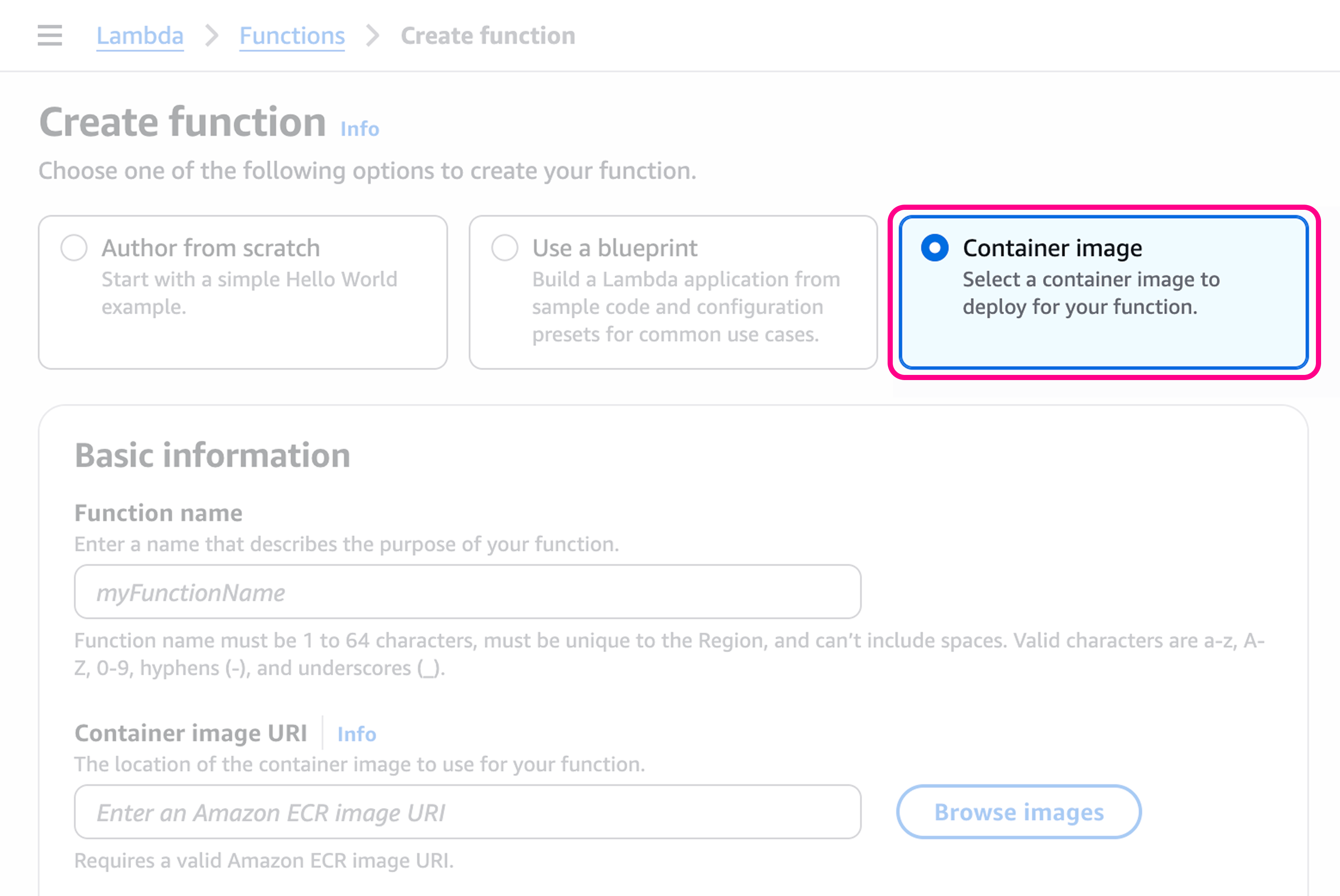
    Go to **AWS Console** > **Lambda** > [**Create Function**](https://us-east-1.console.aws.amazon.com/lambda/home?region=us-east-1#/create/function?intent=authorFromImage) > Select **Container image**

    <Warning>Make sure you've selected the right region, this URL defaults to `us-east-1`.</Warning>

    <Frame>
            <img src="https://mintcdn.com/bun-1dd33a4e/TVJ0wXBZobUdB01H/images/guides/lambda1.png?fit=max&auto=format&n=TVJ0wXBZobUdB01H&q=85&s=56e8b0e323726544e2a88c7e39cb2d50" alt="Create Function" data-og-width="3116" width="3116" data-og-height="2084" height="2084" data-path="images/guides/lambda1.png" data-optimize="true" data-opv="3" srcset="https://mintcdn.com/bun-1dd33a4e/TVJ0wXBZobUdB01H/images/guides/lambda1.png?w=280&fit=max&auto=format&n=TVJ0wXBZobUdB01H&q=85&s=be1e07dd83ac2428f922dce05b7a5db7 280w, https://mintcdn.com/bun-1dd33a4e/TVJ0wXBZobUdB01H/images/guides/lambda1.png?w=560&fit=max&auto=format&n=TVJ0wXBZobUdB01H&q=85&s=2607219192945f0cce23b991c07a4ff2 560w, https://mintcdn.com/bun-1dd33a4e/TVJ0wXBZobUdB01H/images/guides/lambda1.png?w=840&fit=max&auto=format&n=TVJ0wXBZobUdB01H&q=85&s=930cc066927af65f4b1caadca36ab593 840w, https://mintcdn.com/bun-1dd33a4e/TVJ0wXBZobUdB01H/images/guides/lambda1.png?w=1100&fit=max&auto=format&n=TVJ0wXBZobUdB01H&q=85&s=27a4464f1a0a967fbe1d306cd7b24b66 1100w, https://mintcdn.com/bun-1dd33a4e/TVJ0wXBZobUdB01H/images/guides/lambda1.png?w=1650&fit=max&auto=format&n=TVJ0wXBZobUdB01H&q=85&s=2dfb69e43527bdff02c695f2bf023d5f 1650w, https://mintcdn.com/bun-1dd33a4e/TVJ0wXBZobUdB01H/images/guides/lambda1.png?w=2500&fit=max&auto=format&n=TVJ0wXBZobUdB01H&q=85&s=8588dcf38cd7ef5d005378006a00486d 2500w" />
    </Frame>

    Give the function a name, like `my-bun-function`.
  </Step>

  <Step title="Select the container image">
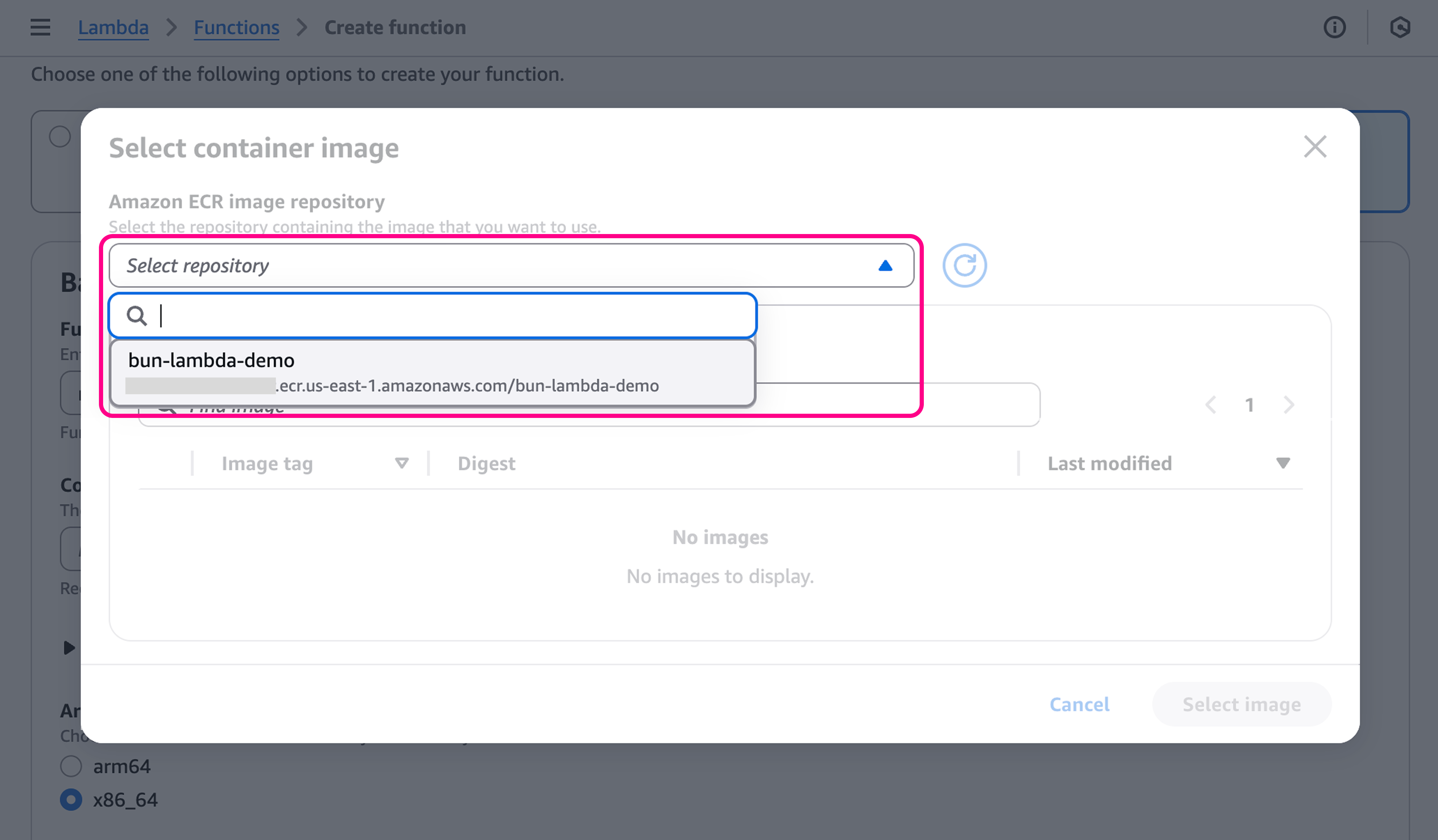
    Then, go to the **Container image URI** section, click on **Browse images**. Select the image we just pushed to the ECR repository.
    <Frame>
            <img src="https://mintcdn.com/bun-1dd33a4e/TVJ0wXBZobUdB01H/images/guides/lambda2.png?fit=max&auto=format&n=TVJ0wXBZobUdB01H&q=85&s=89ab4c81547ef562733fb29b704a9e24" alt="Select Container Repository" data-og-width="4128" width="4128" data-og-height="2412" height="2412" data-path="images/guides/lambda2.png" data-optimize="true" data-opv="3" srcset="https://mintcdn.com/bun-1dd33a4e/TVJ0wXBZobUdB01H/images/guides/lambda2.png?w=280&fit=max&auto=format&n=TVJ0wXBZobUdB01H&q=85&s=98f4649bd66f1c04f9216c8afdb774b8 280w, https://mintcdn.com/bun-1dd33a4e/TVJ0wXBZobUdB01H/images/guides/lambda2.png?w=560&fit=max&auto=format&n=TVJ0wXBZobUdB01H&q=85&s=ad4049426f74687b865836ffd9bd1564 560w, https://mintcdn.com/bun-1dd33a4e/TVJ0wXBZobUdB01H/images/guides/lambda2.png?w=840&fit=max&auto=format&n=TVJ0wXBZobUdB01H&q=85&s=4904d76d040f22f19e81674fe93b6d66 840w, https://mintcdn.com/bun-1dd33a4e/TVJ0wXBZobUdB01H/images/guides/lambda2.png?w=1100&fit=max&auto=format&n=TVJ0wXBZobUdB01H&q=85&s=006add82aa6d8d4d21a8e179d745d6dd 1100w, https://mintcdn.com/bun-1dd33a4e/TVJ0wXBZobUdB01H/images/guides/lambda2.png?w=1650&fit=max&auto=format&n=TVJ0wXBZobUdB01H&q=85&s=d513fab958cf6dcbd8491d7a17186e2c 1650w, https://mintcdn.com/bun-1dd33a4e/TVJ0wXBZobUdB01H/images/guides/lambda2.png?w=2500&fit=max&auto=format&n=TVJ0wXBZobUdB01H&q=85&s=2596c0352f274ed0a4eafdee8b6176a4 2500w" />
    </Frame>

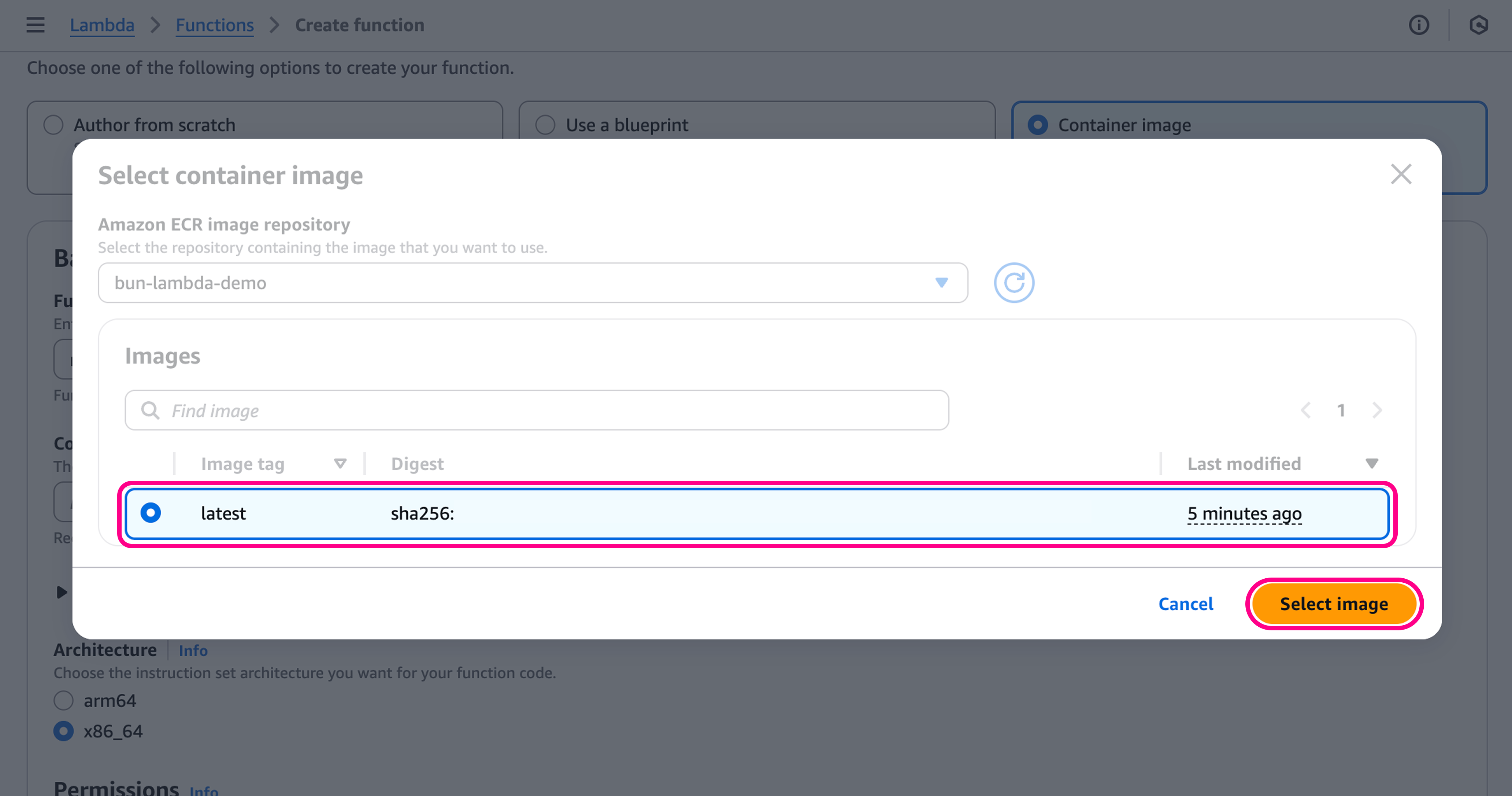
    Then, select the `latest` image, and click on **Select image**.
    <Frame>
            <img src="https://mintcdn.com/bun-1dd33a4e/TVJ0wXBZobUdB01H/images/guides/lambda3.png?fit=max&auto=format&n=TVJ0wXBZobUdB01H&q=85&s=70906fbda8b366e972615bd297335e9d" alt="Select Container Image" data-og-width="4128" width="4128" data-og-height="2172" height="2172" data-path="images/guides/lambda3.png" data-optimize="true" data-opv="3" srcset="https://mintcdn.com/bun-1dd33a4e/TVJ0wXBZobUdB01H/images/guides/lambda3.png?w=280&fit=max&auto=format&n=TVJ0wXBZobUdB01H&q=85&s=68027906d7eb4435bceb62ec4f1f9ea6 280w, https://mintcdn.com/bun-1dd33a4e/TVJ0wXBZobUdB01H/images/guides/lambda3.png?w=560&fit=max&auto=format&n=TVJ0wXBZobUdB01H&q=85&s=9a19378b316cf21766664902b25a6a6f 560w, https://mintcdn.com/bun-1dd33a4e/TVJ0wXBZobUdB01H/images/guides/lambda3.png?w=840&fit=max&auto=format&n=TVJ0wXBZobUdB01H&q=85&s=3daaba5b53626005d85940151a538b87 840w, https://mintcdn.com/bun-1dd33a4e/TVJ0wXBZobUdB01H/images/guides/lambda3.png?w=1100&fit=max&auto=format&n=TVJ0wXBZobUdB01H&q=85&s=d156a64e32e812c97c70e090bbeeae5b 1100w, https://mintcdn.com/bun-1dd33a4e/TVJ0wXBZobUdB01H/images/guides/lambda3.png?w=1650&fit=max&auto=format&n=TVJ0wXBZobUdB01H&q=85&s=bb7f5d83ac193b2736205ef35cf924e0 1650w, https://mintcdn.com/bun-1dd33a4e/TVJ0wXBZobUdB01H/images/guides/lambda3.png?w=2500&fit=max&auto=format&n=TVJ0wXBZobUdB01H&q=85&s=8a41f19e3674fed9542bf9b33294d89d 2500w" />
    </Frame>
  </Step>

  <Step title="Configure the function">
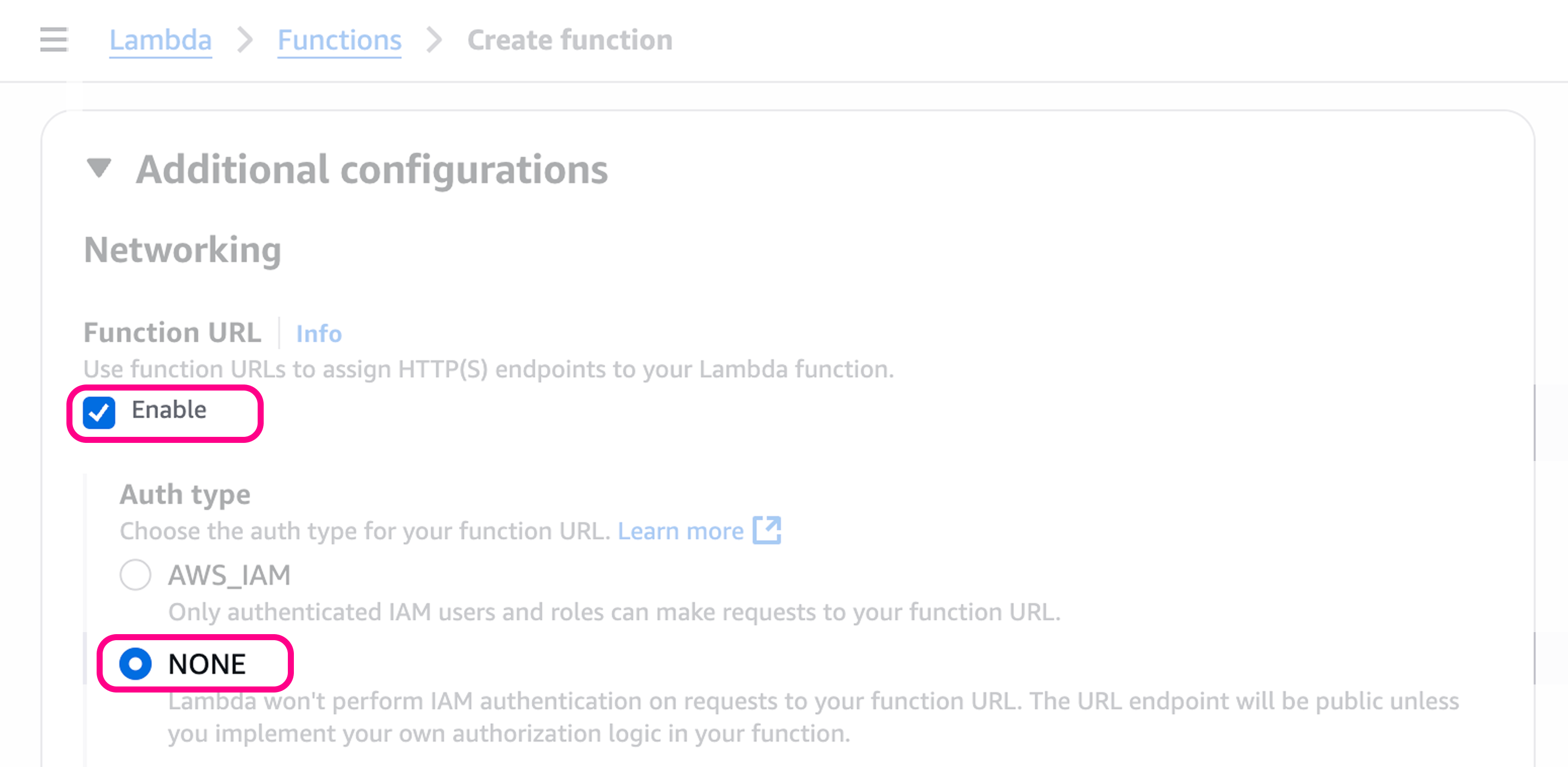
    To get a public URL for the function, we need to go to **Additional configurations** > **Networking** > **Function URL**.

    Set this to **Enable**, with Auth Type **NONE**.
    <Frame>
            <img src="https://mintcdn.com/bun-1dd33a4e/TVJ0wXBZobUdB01H/images/guides/lambda4.png?fit=max&auto=format&n=TVJ0wXBZobUdB01H&q=85&s=48620c8aeb9326875d97a9a17edc8b1e" alt="Set the Function URL" data-og-width="3116" width="3116" data-og-height="1524" height="1524" data-path="images/guides/lambda4.png" data-optimize="true" data-opv="3" srcset="https://mintcdn.com/bun-1dd33a4e/TVJ0wXBZobUdB01H/images/guides/lambda4.png?w=280&fit=max&auto=format&n=TVJ0wXBZobUdB01H&q=85&s=3b2ce96581a8b1db46c298fe20b87aad 280w, https://mintcdn.com/bun-1dd33a4e/TVJ0wXBZobUdB01H/images/guides/lambda4.png?w=560&fit=max&auto=format&n=TVJ0wXBZobUdB01H&q=85&s=3b40b8a5e6a637e54b2f788063d561be 560w, https://mintcdn.com/bun-1dd33a4e/TVJ0wXBZobUdB01H/images/guides/lambda4.png?w=840&fit=max&auto=format&n=TVJ0wXBZobUdB01H&q=85&s=f392229622e663bb861333911b98d8fe 840w, https://mintcdn.com/bun-1dd33a4e/TVJ0wXBZobUdB01H/images/guides/lambda4.png?w=1100&fit=max&auto=format&n=TVJ0wXBZobUdB01H&q=85&s=8df1357cff6f0feaf38f3bd5e66c028e 1100w, https://mintcdn.com/bun-1dd33a4e/TVJ0wXBZobUdB01H/images/guides/lambda4.png?w=1650&fit=max&auto=format&n=TVJ0wXBZobUdB01H&q=85&s=6d4efed01b67c45288faca8c2c894889 1650w, https://mintcdn.com/bun-1dd33a4e/TVJ0wXBZobUdB01H/images/guides/lambda4.png?w=2500&fit=max&auto=format&n=TVJ0wXBZobUdB01H&q=85&s=96e2978d02762571bac5b56ef6dcd561 2500w" />
    </Frame>
  </Step>

  <Step title="Create the function">
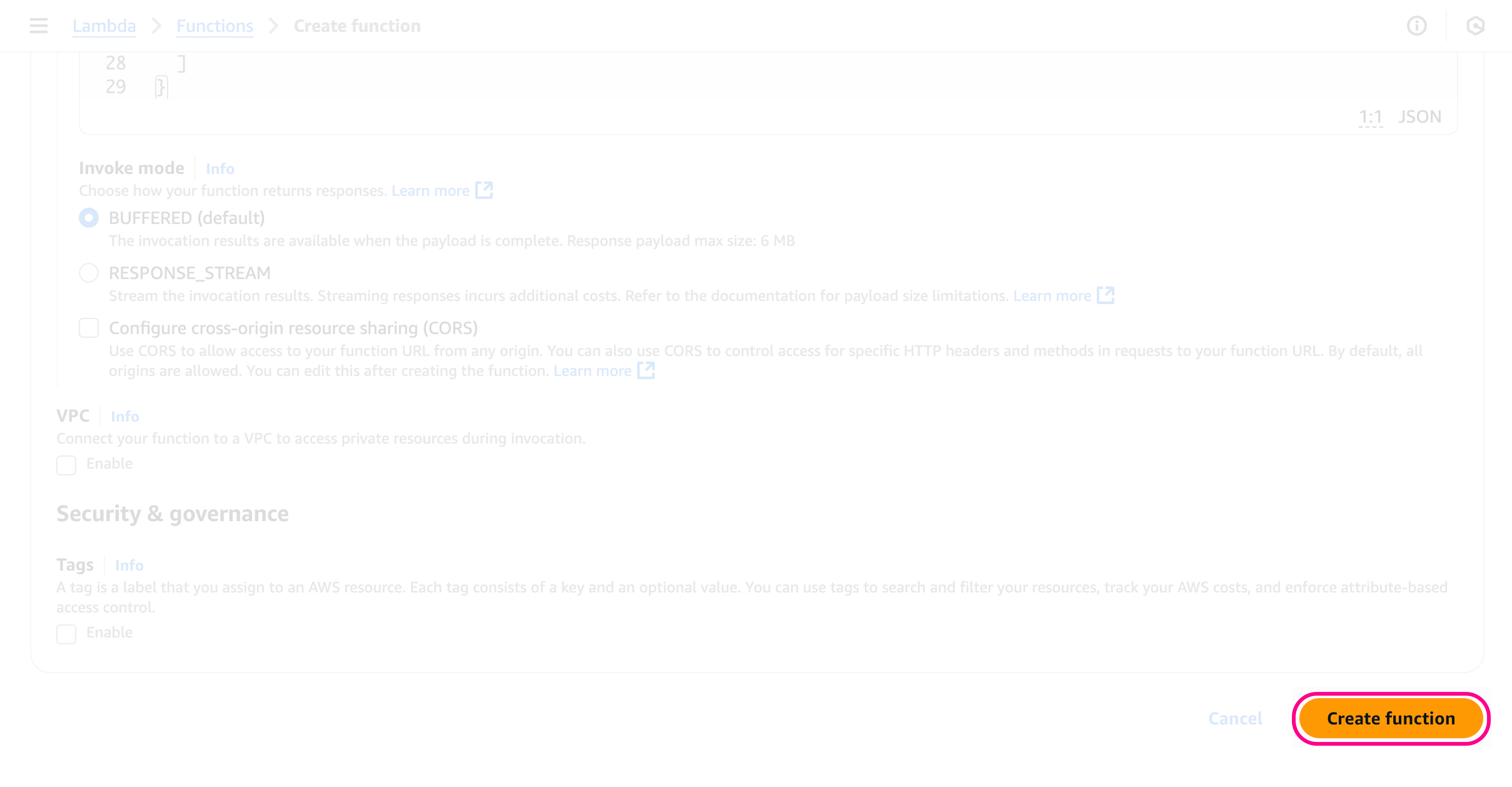
    Click on **Create function** at the bottom of the page, this will create the function.
    <Frame>
            <img src="https://mintcdn.com/bun-1dd33a4e/TVJ0wXBZobUdB01H/images/guides/lambda6.png?fit=max&auto=format&n=TVJ0wXBZobUdB01H&q=85&s=f615eda922b34ac37bc5e39a8f08ef25" alt="Create Function" data-og-width="4836" width="4836" data-og-height="2516" height="2516" data-path="images/guides/lambda6.png" data-optimize="true" data-opv="3" srcset="https://mintcdn.com/bun-1dd33a4e/TVJ0wXBZobUdB01H/images/guides/lambda6.png?w=280&fit=max&auto=format&n=TVJ0wXBZobUdB01H&q=85&s=330d7faad768b412e7d3868d7fa16b39 280w, https://mintcdn.com/bun-1dd33a4e/TVJ0wXBZobUdB01H/images/guides/lambda6.png?w=560&fit=max&auto=format&n=TVJ0wXBZobUdB01H&q=85&s=5479e1d1678c19a0739780e4dccaf95b 560w, https://mintcdn.com/bun-1dd33a4e/TVJ0wXBZobUdB01H/images/guides/lambda6.png?w=840&fit=max&auto=format&n=TVJ0wXBZobUdB01H&q=85&s=1f22688a1a937310024250ded4c93406 840w, https://mintcdn.com/bun-1dd33a4e/TVJ0wXBZobUdB01H/images/guides/lambda6.png?w=1100&fit=max&auto=format&n=TVJ0wXBZobUdB01H&q=85&s=cb57546fc313d0877e569b173de4df2b 1100w, https://mintcdn.com/bun-1dd33a4e/TVJ0wXBZobUdB01H/images/guides/lambda6.png?w=1650&fit=max&auto=format&n=TVJ0wXBZobUdB01H&q=85&s=f2e97207b160d7872ff00ad741fdb632 1650w, https://mintcdn.com/bun-1dd33a4e/TVJ0wXBZobUdB01H/images/guides/lambda6.png?w=2500&fit=max&auto=format&n=TVJ0wXBZobUdB01H&q=85&s=0523b6501d4eb45b25483006d8918930 2500w" />
    </Frame>
  </Step>

  <Step title="Get the function URL">
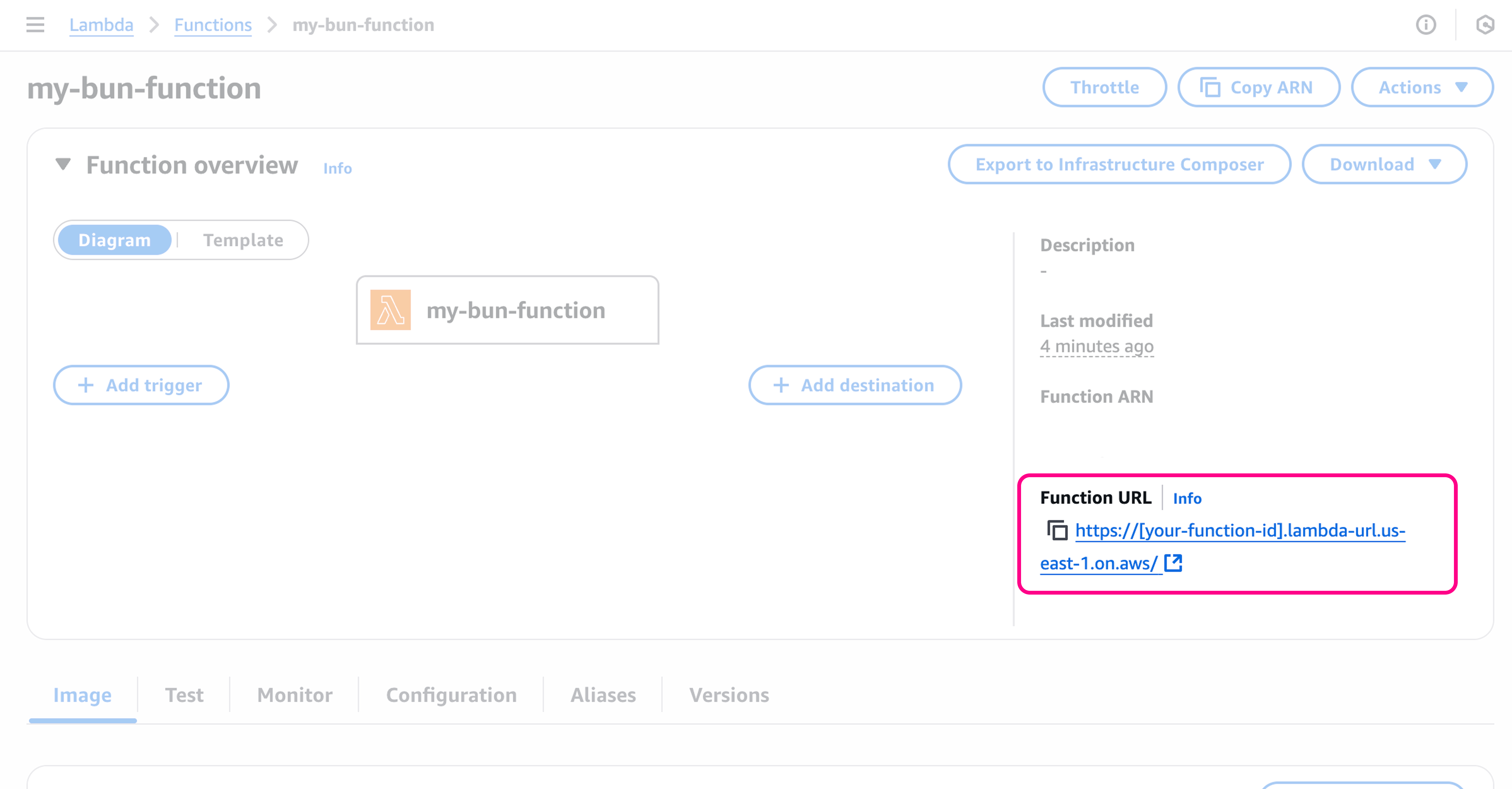
    Once the function has been created you'll be redirected to the function's page, where you can see the function URL in the **"Function URL"** section.
    <Frame>
            <img src="https://mintcdn.com/bun-1dd33a4e/TVJ0wXBZobUdB01H/images/guides/lambda5.png?fit=max&auto=format&n=TVJ0wXBZobUdB01H&q=85&s=5bc860978a6c636d49c1a73603d0655a" alt="Function URL" data-og-width="4792" width="4792" data-og-height="2500" height="2500" data-path="images/guides/lambda5.png" data-optimize="true" data-opv="3" srcset="https://mintcdn.com/bun-1dd33a4e/TVJ0wXBZobUdB01H/images/guides/lambda5.png?w=280&fit=max&auto=format&n=TVJ0wXBZobUdB01H&q=85&s=63fb11ed81703c7053832992716e33c5 280w, https://mintcdn.com/bun-1dd33a4e/TVJ0wXBZobUdB01H/images/guides/lambda5.png?w=560&fit=max&auto=format&n=TVJ0wXBZobUdB01H&q=85&s=e9a2e94b129f3cbb5d18511390dfd230 560w, https://mintcdn.com/bun-1dd33a4e/TVJ0wXBZobUdB01H/images/guides/lambda5.png?w=840&fit=max&auto=format&n=TVJ0wXBZobUdB01H&q=85&s=d93a2029078a2a31d95532d194d24d59 840w, https://mintcdn.com/bun-1dd33a4e/TVJ0wXBZobUdB01H/images/guides/lambda5.png?w=1100&fit=max&auto=format&n=TVJ0wXBZobUdB01H&q=85&s=99e2cfdeafd8f41414bf514da188dc6e 1100w, https://mintcdn.com/bun-1dd33a4e/TVJ0wXBZobUdB01H/images/guides/lambda5.png?w=1650&fit=max&auto=format&n=TVJ0wXBZobUdB01H&q=85&s=a53bb52b56a34858f23b773191c346d5 1650w, https://mintcdn.com/bun-1dd33a4e/TVJ0wXBZobUdB01H/images/guides/lambda5.png?w=2500&fit=max&auto=format&n=TVJ0wXBZobUdB01H&q=85&s=9cc350917ff0977838f83099edbdbdc5 2500w" />
    </Frame>
  </Step>

  <Step title="Test the function">
    🥳 Your app is now live! To test the function, you can either go to the **Test** tab, or call the function URL directly.

    ```bash terminal icon="terminal" theme={"theme":{"light":"github-light","dark":"dracula"}}
    curl -X GET https://[your-function-id].lambda-url.us-east-1.on.aws/
    ```

    ```txt  theme={"theme":{"light":"github-light","dark":"dracula"}}
    Hello from Bun on Lambda!
    ```
  </Step>
</Steps>