
ReflectWorld Cam — Video Source Management
Manage video sources: add cameras, capture snapshots, start/stop monitoring, adjust settings, switch modes, watch live, list recordings.
Actions
| Action | What it does | Required params | Returns |
|---|---|---|---|
add_source |
Register a new video source | source |
Source config; phone sources include setup URL + QR code |
list_sources |
List all registered sources | none | Array of { name, input, protocol } |
remove_source |
Remove a source and stop all activities | name |
{ success: true/false } |
snapshot |
Quick look — capture one frame + run Perception | name |
Perception result: summary, entities, security_risk |
watch |
Start background monitoring | name, mode |
{ status: "watching" } |
stop_watch |
Stop a running watch session | name |
{ status: "stopped", recordings: [...] } |
set_sampling |
Change fps/resolution on active watch | name, + fps/width/height |
{ success, fps, width, height, previous } |
switch_mode |
Switch event/stream mode on active watch | name, mode |
{ success, mode, previous_mode } |
live_view |
Get browser link for real-time camera livestream | name |
{ live_url, message } — user opens in browser |
list_recordings |
List recorded video files | name |
Array of recording files |
save_reference |
Save current frame as reference state for VLM comparison | name |
{ success, path } |
User-facing monitoring options
After adding a source, present exactly 3 choices to the user:
| User choice | Action | Mode | What happens |
|---|---|---|---|
| Take a quick look | snapshot |
— | Captures one frame, runs Perception, returns analysis result |
| Alert me on motion | watch |
event |
Monitors for motion; records + analyzes only when movement detected; sends alert |
| Watch continuously | watch |
stream |
Continuous recording + periodic analysis; sends notifications for notable events |
Do NOT proactively show technical parameters (fps, duration, width, height) to users — they have sensible defaults. But if the user explicitly requests a specific value (e.g. "4K resolution", "5 fps", "watch for 10 minutes"), set the corresponding parameter.
Scene-based fps/resolution guidelines
| Scene type | Recommended fps | Resolution | Mode | Rationale |
|---|---|---|---|---|
| Cooking | 1 fps | 960x540 | stream | Slow changes; lower resolution saves bandwidth |
| Security / front door | 1 fps | 1280x720 | event | Motion-triggered; only analyzes when movement detected |
| Behavior analysis (poker, games) | 0.5 fps | 1280x720 | stream | Slow action; auto-boost on motion if needed |
| Fast action (sports, pets) | 2-5 fps | 1280x720 | stream | Need higher temporal resolution |
| General / default | 1 fps | 1280x720 | stream | Good balance for most scenes |
Adjusting settings during watch
set_sampling — change fps/resolution
Use set_sampling to change fps or resolution while a watch is running — no need to stop and restart. Only specify the params you want to change; others keep their current values.
Example: user says "speed up to 3 fps" → { action: "set_sampling", name: "kitchen", fps: 3 }
switch_mode — change event/stream mode
Use switch_mode to toggle between event and stream mode on an active watch without restarting. The watch session continues with the new mode.
Example: user says "switch to continuous monitoring" → { action: "switch_mode", name: "front-door", mode: "stream" }
When to use which:
set_sampling: user wants different frame rate or resolution (quantitative change)switch_mode: user wants different monitoring behavior — event-triggered vs continuous (qualitative change)
Live view
When the user wants to see a camera's live feed ("show me the camera", "let me see what's happening", "I want to watch the stream"), use live_view. It returns a browser URL (go2rtc built-in player) the user clicks to see real-time video via WebRTC. Works on the local network.
Supported video sources
| Input | Example |
|---|---|
"phone" |
Phone camera (via ClawCam WebRTC) — returns QR code for easy setup |
"webcam" |
Laptop/desktop webcam |
"usb" or "usb:N" |
USB camera (index N) |
"rtsp://..." |
IP camera RTSP stream |
"https://...m3u8" |
HLS live stream |
"https://...jpg" |
HTTP snapshot camera |
"/path/to/video.mp4" |
Local video file |
Pipeline (automatic)
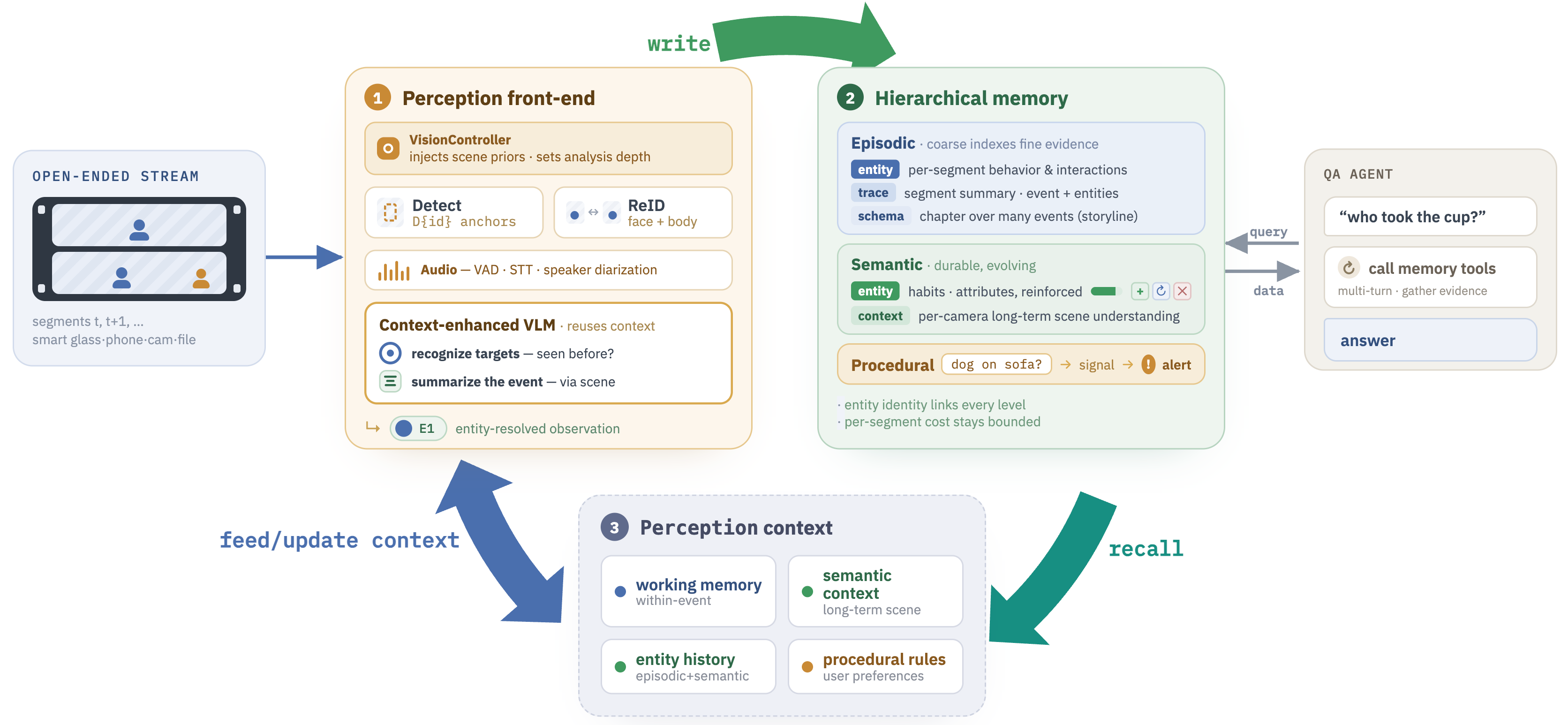
Once a watch is started, the background pipeline runs automatically: FrameExtractor → Segmenter → Perception (VLM) → ReflectWorld → Act
You do NOT need to call perception/memory/act manually. Analysis results are pushed to the user as notifications automatically.
Phone camera reconnection
Phone cameras use the ClawCam bridge (npm install -g clawcam). When a phone camera watch fails with "clawcam rtsp exited unexpectedly" or "Device not found":
- The device registration may have expired. Re-run
add_sourcewithsource: "phone"and the same camera name to re-create the device. - The user must open the returned setup URL (or scan QR code) on their phone to re-activate the WebRTC connection.
- Then start
watchas normal.
Do NOT just retry watch — the device must be re-registered first via add_source.
Error handling
| Error | What to do |
|---|---|
Source "X" not found |
Call list_sources to show available cameras |
Already watching: X |
Tell user monitoring is already running |
Not watching: X |
Nothing to stop |
Watch failed: ... |
Suggest checking camera connection |
clawcam rtsp exited unexpectedly |
Device expired — re-run add_source with source: "phone" |
clawcam is not installed |
Tell user: npm install -g clawcam |