
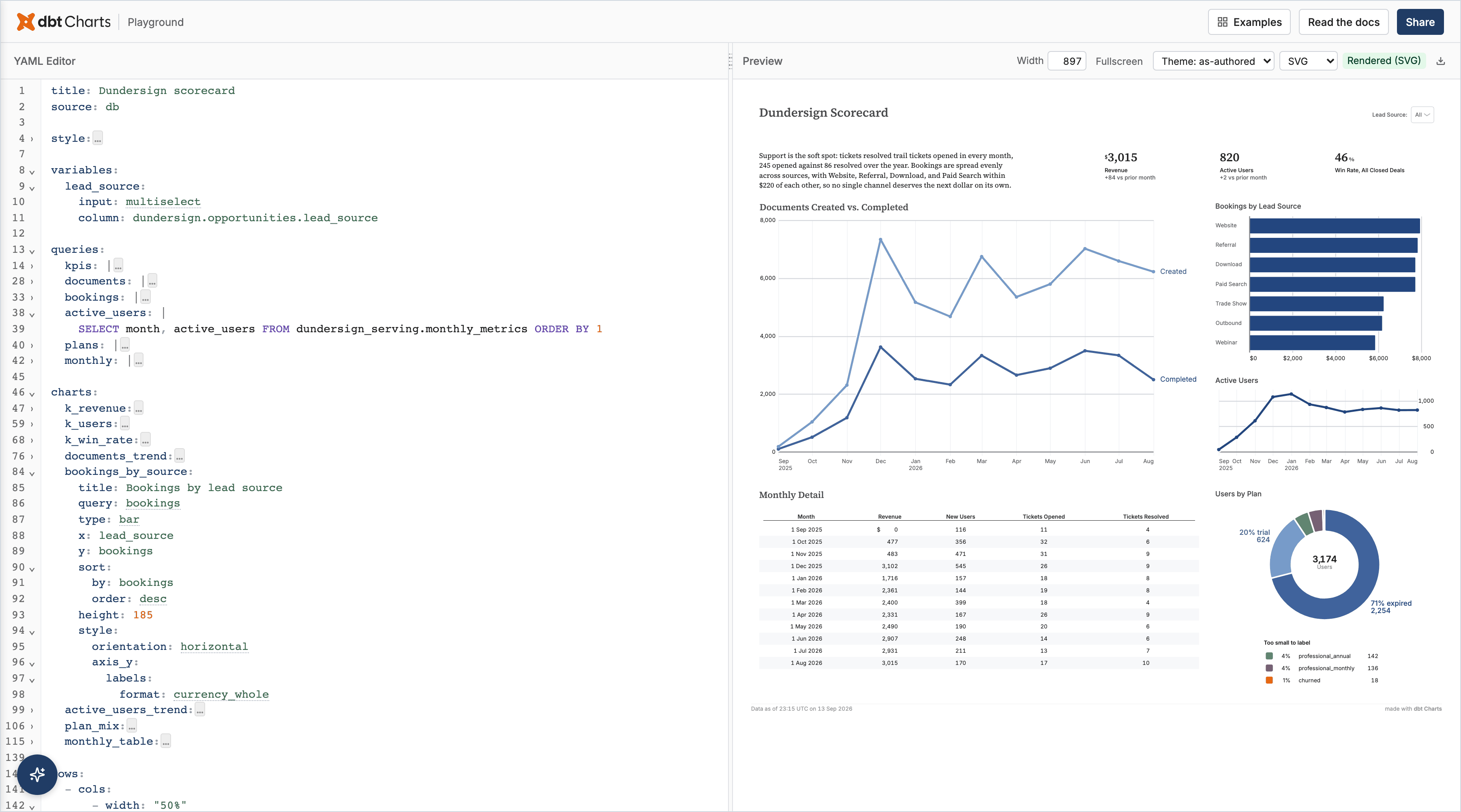
Setting up dbt charts Cloud
Walk a user from nothing to a live, rendered board on dbtcharts.com, running
dct cloud verbs and asking the user for only what your own credentials
cannot supply. One browser sitting stays human: approving dct cloud login
(Step 1) and, right after it, for a GitHub repository connected through the
App, installing the GitHub App on it (Step 3). Everything else you do yourself, showing the boards locally as you
go.
This skill is CLI-only (
surfaces: [cli]) —dct cloudhas no MCP tool surface. Syntax for every verb below lives in--help; this skill only orders the steps and tells you what to check before each one.
"Cloud" here is dbt charts Cloud (dbtcharts.com), not dbt Labs' dbt Cloud (getdbt.com). Local-only charts need no account —
dct serverenders them.
Get consent up front
This run needs the user in the browser to approve dct cloud login (Step 1)
and, for a private GitHub repository, to pick it for the GitHub App (Step 3);
dct cloud status lists the human steps still ahead. Two things are
decisions, not clicks: a read-only warehouse credential is minted and handed
to Cloud (Step 5), and dbt charts files are committed and pushed to this
repository's default branch (Steps 4 and 8). If the user's request did not
already grant them, ask for both once, before Step 1.
Before you start
Run dct cloud status first; it works before login, where it exits
non-zero after printing. Its This checkout
section reports this directory: the project root (or the dbt_charts.yml to
create), the git branch, remote and how far ahead or behind it is, a
git identity: line when user.email or user.name is unset, the board
count, the declared sources and their types, and on the cloud: line which
org and project the checkout is tied to. status itself is org-scoped:
when cloud: says the checkout is not tied to the org, the stage printed
below it belongs to other projects, not to this repository. Human steps ahead lists what still needs the user.
Confirm what it can't tell you:
dct --version— dbt charts is installed. If not:uv tool install dbt-charts.gh auth status— Cloud deploys from a git repository on GitHub, GitLab, Bitbucket, or any host that serves plain HTTPS git; a GitHub repository is connected through the dbt charts GitHub App or a token (Step 3).ghis optional: it lets you pre-check admin rights on a GitHub repo (Step 3) and is how a repo that isn't on GitHub yet gets there (gh repo create). Offergh auth loginif it is installed but signed out.- Warehouse CLI auth, so you know which credential-minting path applies
later —
statusreports a source's declared type, not whether your local credential for it works. For BigQuery rungcloud auth print-access-token, notgcloud auth list, which shows an expired account as active. If the token print fails, the user has to sign in themselves. For Snowflake,which snowsql; for Postgres/Redshift,which psql. Missing tooling isn't fatal — it just means the user supplies the credential instead of you minting one. - Where the data lives. Cloud connection types are exactly
bigquery, postgresql, redshift, snowflake. Adbt_charts.ymlsource oftype: duckdbortype: sqlite(or a local.duckdbfile with no project yet) is local-only — Cloud never reads the file, even when it is committed to the repo. Say so now, before any board is authored in that dialect, and offer the two ways forward: load the tables into one of the four warehouses (then write the boards against it), or export each table to a Parquet/CSV/JSON file committed in the repo and register it once undersources:(type: csv | json | parquet, afiles:map, paths relative to the project root) — every query then references it by name, and it renders identically locally and on Cloud with no connection step. Reach for the inline one-off form (source: ../data/orders.parquet, resolved from the board's own directory or the project root) only when a board is the sole reader of that one file. Don't build DuckDB boards and discover this at Step 5.
Pick the repo and folder
Cloud deploys from a git repo, so settle where the project lives before you authenticate — don't silently scaffold one:
- Already in a git repo with a dbt charts project (a
dbt_charts.ymlplus acharts/directory) — use it as-is. - In a git repo but no project yet — ask whether to make this repo the
home, or to start a new repo for it.
dct initscaffolds the project (dbt_charts.yml+ acharts/with no boards) beside the nearest project marker (adbt_project.ymlcounts), so where you run it matters. Cloud tracks the repo plus the subfolder that holds the project, so whatever folder init lands in is the one to connect in Step 3 — keep them the same. Do whichever the user chooses; don't scaffold without asking. - Not in a git repo — offer to initialize one (
git init, or point them at a fresh repo). Cloud has nothing to connect without it.
Whichever it is, the repo must be on a git host with at least one commit pushed before Step 3; boards can follow, every push syncs.
Sandbox note
Under a sandboxed agent (Codex's workspace-write sandbox, for one) the first
network call may fail on DNS, and gh/gcloud may report missing or invalid
credentials because the sandbox hides the host keyring and ~/.config — not
because the credential is actually gone. Re-run with network/host access
before concluding otherwise.
dct serve can fail to bind a local port in the same sandbox (operation not permitted) — skip the local preview there and verify the board against
Cloud instead (the fetch in "When you're done").
If a push is rejected because the remote moved and the sandbox blocks
git rebase in place (could not create .git/rebase-merge), fetch and
rebase in a temporary clone instead of force-pushing.
Step 1: Authenticate
Run a read-only verb (dct cloud orgs) first — if DCT_CLOUD_TOKEN is
already set or a token is already stored, it just works and this step is
done. Otherwise run dct cloud login --start; hand the URL it prints to the
user — only they can complete the browser approval.
You are not creating an account, and not having one is not a blocker. All
you do is hand the user the login URL; on that page signing in and signing
up happen in the same place — the user can sign up right there, with no
separate registration step first. So never refuse this for "I can't make you
an account," and never point the user at another product's login. Let them
sign in or sign up at the dct cloud login URL, then pick or create the
organization the CLI should reach and approve.
Bare dct cloud login blocks until the approval lands or the code expires
(about 30 minutes) — longer than your shell tool's timeout and the user may
be slow, so use the two-step form instead of backgrounding the blocking one:
URL=$(dct cloud login --start)
This returns immediately: it prints the approval URL to stdout and stores
the pending grant for --wait to pick up. Hand $URL to the user
immediately, as the only thing you say — no summary first; every minute
spent writing notes eats the code's lifetime. Also say which account to
approve with when they have several: the CLI becomes whoever approves, so
the org this creates or joins belongs to that account, and the board URLs
only open in a browser signed in as a member. Then, in the same turn, wait
in the foreground with your longest timeout:
dct cloud login --wait
This blocks until the user approves (it prints Logged in), then returns,
so you continue on your own, don't ask the user to tell you when they're
done. If it reports the code expired or denied, run dct cloud login --start again and hand over the new URL. Never guess a token value, and
never try to complete the browser step yourself — it is the user signing in,
not you.
Step 2: Organization
List orgs (dct cloud orgs) — the consent screen in Step 1 always leaves at
least one, picked or created there. Note the slug of the one this repository
is for: Step 3 names it with --org. project connect never reads the
dct cloud use default (a repo being connected matches nothing yet, so the
default would silently answer every time), so dct cloud use <org> is
optional — it only saves --org on verbs run outside the repo later. dct cloud org create remains available if the user wants to create an
additional organization later.
Step 3: Connect the project
Do this right after login, while the user is still in the browser — not after an hour of board authoring.
Pre-flight: with gh available, check gh api repos/<owner>/<repo> --jq .permissions.admin. Cloud's repo picker only offers repos you administer —
a non-admin lands on a refusal page with no way forward. If the check fails,
tell the user up front whose account needs admin rights rather than sending
them into a dead end.
project connect takes the git host as a subcommand, and each host takes the
credentials it supports (dct cloud project connect <host> --help is the
contract). Pick the subcommand from the host in the origin remote; dct cloud status prints the matching line. Every path names the org from Step 2
with --org <org>:
gitlab(gitlab.com) andbitbucket(bitbucket.org): with the token exported asDCT_GIT_TOKEN, rundct cloud project connect gitlab --org <org> --git-url https://gitlab.com/<group>/<repo>, ordct cloud project connect bitbucket --org <org> --git-url https://bitbucket.org/<workspace>/<repo>. Ask the user for the token (their getting-started guide lists the permissions it needs); never guess or mint one. Pass it throughDCT_GIT_TOKENrather than--tokenso it stays out of the process list. Cloud checks the host and the token's permissions and refuses a mismatch.git(any other host, such as self-managed GitLab):dct cloud project connect git --org <org> --git-url <https-url>, with--git-usernameand--git-password(DCT_GIT_PASSWORD) for a private repository.github(github.com): decide by the repository's visibility, not bygh, which looks signed out under a sandboxed agent. GitHub's public API answers 200 only for a public repository, and reads none of git's credentials:curl -q -fsS -o /dev/null https://api.github.com/repos/<owner>/<repo>A DNS failure means "couldn't check," not "private": retry with network access first.
- Succeeds (public repo) and the user has no token:
dct cloud project connect git --org <org> --git-url https://github.com/<owner>/<repo>. No browser hop, but agitconnection has no writable remote:dct cloud project scaffoldcannot open a PR for it, and a board edited in Cloud's own UI stays in Cloud's copy of the repo. If it is refused withCouldn't authenticate to the repository, the repository is private: take the App flow below. - Fails, including a network failure that couldn't confirm public, or
the user wants Cloud to push and open PRs: the App flow,
dct cloud project connect githubwith no URL.--startprints an install/pick URL and returns immediately, no backgrounding needed.--startand--waitare one inseparable unit, not two steps split across other work: hand over the URL, then immediately run--waitin the same turn, before Step 4 and before any board authoring. The project does not exist in Cloud until--waitcompletes — running--startand moving on leaves the connect silently unfinished, anddct cloud statusstaysmissing_projectuntil someone notices and re-runs--wait. - A user who cannot install the App can instead supply a fine-grained
personal access token:
dct cloud project connect github --org <org> --git-url https://github.com/<owner>/<repo>withDCT_GIT_TOKENset.
URL=$(dct cloud project connect github --org <org> --start)Hand
$URLto the user, then right away, still in this turn:dct cloud project connect github --waitThis blocks until the pick lands (it prints
Connected), then returns, so you continue on your own, don't ask the user to tell you when they're done. If the App already covers the repo, the pick is a single click. The page after the pick tells the user to come back to the terminal; nothing on it needs pressing. If--waittimes out, run it again: the pick has no expiry of its own, so it resumes the same pending connect rather than needing a fresh--start.- Succeeds (public repo) and the user has no token:
A successful connect records where the project now lives — published_to: "https://<host>/<org>/<project>/" — in the repo's dbt_charts.yml, and
prints a reminder to commit it. It writes only when that file already exists
and the checkout's git remote is the repo just connected; otherwise it prints
the exact key and value, and you add it (creating dbt_charts.yml is
scaffolding, which connect does not do). Read what connect printed. Once the
key is in place and committed, resolve org and project from it (dct cloud status and every other verb read it first) rather than passing
--org/--project again or re-inferring from git remote later in the
session.
Step 4: Boards, if none exist yet
This skill connects a repo and a warehouse; it doesn't author boards. If the repo has no boards the user actually authored, hand off to the chart skill first: inspect the warehouse schema, author board YAML, validate and render locally, commit, push, then publish the push (Step 8).
Show the work. As soon as one board renders locally, serve it:
dct serve > /tmp/dct-serve.log 2>&1 &
sleep 3 && grep -o 'http://[^ ]*' /tmp/dct-serve.log
Open that URL (open on macOS, xdg-open on Linux), tell the user it is
there — then keep going; this is not an approval stop. Leave it running: it
re-renders on every save, so the user watches boards appear while you finish
the Cloud side. One dct serve per repo; a second writer fights the first.
Step 5: Warehouse connection
Skip this whole step if every source is a file source. A project whose
sources: are all type: csv | json | parquet needs no connection, no
credential and no mapping — it resolves from the repo. Go straight to Step 7.
connections: 0 is the correct end state there, not an unfinished one.
Mint the narrowest credential your own identity can, per provider, into a temp file you delete once the connection is saved — never paste a secret into a command argument (every credential field takes a file, stdin, or a named environment variable; a bare secret on argv sits in shell history and the process list, so the connect verb refuses it).
| Warehouse | Minting | If you can't mint one |
|---|---|---|
| BigQuery | Create a service account scoped to the target dataset, grant it read access. Cover every dataset the boards' SQL names, not only the source's default one: a connection test passes against the default dataset while a board reading a sibling dataset renders Access Denied. The render error names the table; extend the grant and re-render with dct cloud render --force. If the dataset-level grant is blocked and you fall back to a project-level conditional binding, the condition must cover both the Dataset and Table resource types — Dataset alone renders Access Denied on the first board. Mint a JSON key into a temp file, delete the file once connection create succeeds. |
Ask the user's admin to grant the IAM role, or to hand you a key. |
| Snowflake | Generate a key pair, register the public half on a role-scoped user via snowsql, use the private key file. |
Ask the user to type a password at a stdin prompt — never on the command line. |
| Postgres / Redshift | If your own credentials allow it, create a read-only role via psql and use its password. |
Ask the user to supply or approve a read-only credential. |
The remote BigQuery key outlives the local file. Cloud stores the key's
contents (encrypted) and rebuilds the warehouse credential from them at every
render, not only at the connection test — deleting the temp file removes
nothing on GCP's side. The IAM key must stay valid for as long as the
connection uses it; list and delete it with gcloud iam service-accounts keys list --iam-account <sa-email> and gcloud iam service-accounts keys delete <key-id> --iam-account <sa-email> only once the connection is removed or the
credential is rotated, never right after the test passes.
Create the connection with the minted (or user-supplied) credential. The create call also tests it, and a test that fails outright saves nothing: the command exits non-zero and says what kind of failure it was (a rejected credential, a missing permission, a database it could not find), not the warehouse's raw text. Fix that cause and re-run the same command rather than moving on; there is no leftover connection to delete first, and no need to invent a different alias.
A freshly minted BigQuery key can be rejected right after minting even
though it is correct — the credential can take a minute or more to
propagate through IAM. If connection create reports the credential
rejected immediately after you minted it, keep the key file, wait, and run
the same command once more before minting a second key. If you do mint a
second, delete the first key on GCP (its private_key_id is in the key file).
A test that could not finish in time is the exception, and it is not a
credential problem. The warehouse may still be starting up, so nothing was
disproved and the connection is saved. The command still exits non-zero,
and the error names the slug. Re-run the check with
dct cloud connection test <slug> and carry on when it passes. Do not mint a
new credential and do not re-run connection create: the slug is already
taken, so the create would collide, and clearing it needs an org admin.
Later verbs address the connection by its slug. Pass --name to choose it, or
let it default to the field that names the warehouse (BigQuery's project,
otherwise the database) and read the slug off the success line.
Bind the project's sources in the same call. Every board declares a
source: name; --project <slug> --map-all-sources points each warehouse
source the project has not mapped yet at the new connection, and
--map-source <name> (repeatable) names them one at a time instead. A file
source (type: csv, json, parquet) needs no mapping; it resolves straight
from the repo. A name that is not one of the project's unmapped sources is
refused before anything is saved.
dct cloud connection create --type bigquery --keyfile key.json \
    --set project=acme-gcp --set dataset=analytics \
    --project analytics --map-all-sources
Step 6: Map what is still unmapped
A create that bound its sources leaves nothing here: go to Step 7 once
dct cloud status shows no unmapped sources. Map by hand,
with dct cloud source map <source> <connection>, only what is left: a
source declared after the connection was made, or one that belongs to a
second connection.
Cloud never reads a warehouse source's credential fields (password:,
keyfile:, an env_var() in either) from the committed dbt_charts.yml;
those are for local rendering. On Cloud the mapped connection supplies the
credential, so an unresolvable env_var() in the file is not an error there.
Binding a source, in the create or with source map, re-renders the
project's boards on its own. The first render fired at sync, before anything
was mapped, so its cards read ERR-SOURCE-NOT-FOUND · Available sources: none configured; the binding makes those renders stale
and Cloud sweeps them the way it does after a push. Give it a minute, then
read dct cloud status again rather than editing a board to provoke a render.
Step 7: Render
Trigger rendering for the project's boards — but only once dct cloud status
shows no unmapped sources. Rendering an unmapped project succeeds
mechanically: every chart's query fails, the render still completes, and the
board is served as a page of error cards. That board is errored, not
ready: status counts it as errored on the project's boards: line and
names it on the project's own boards with chart errors: line, and dct cloud boards
reports it errored with the first chart's diagnostic. ready means a
render exists and its charts came back clean. Never tell the user the
boards are live while status still names a next step.
dct cloud render starts only boards that have no render yet. If a board
stays errored after its source is mapped and its query is right — the
warehouse opened a firewall, a credential was rotated on the connection —
dct cloud render --force re-renders every board with fresh query results.
It is a project admin's act: a Creator or Viewer gets the same not-found
answer any admin-only verb gives them.
dct cloud boards reports blocked when a connection the project's sources
map to has not passed its last test — it failed, or nobody has run it. Neither
re-rendering nor --force clears it, because the connection is the problem:
the error names the source, and names the connection and the exact test
command when your token may list connections at all. It does not say why
the test failed: run that command to see what kind of failure it was, and let
it tell you what to fix — a rejected credential and an unreachable warehouse read the same
from here. Fix that, confirm with dct cloud connection test <slug>, then
render. dct cloud render on such a project says so rather than reporting a bare count of zero.
Step 8: Publish the commit, and prove it is the one being served
A git push does not publish. It puts the commit on the git host; Cloud
serves it only after a sync pulls it and re-renders the boards it
changed. A GitHub App project syncs itself
within seconds of a push; a project connected by repository URL has nothing
watching the remote and waits for an hourly sweep. So after every push:
dct cloud project sync
dct cloud status can still read unsynced for a few seconds after this —
the sync is queued, not skipped. Re-run status after a few seconds rather
than running project sync again.
Read dct cloud boards before the push, then again after the sync:
git diff --name-only HEAD~1 HEAD -- charts/   # the boards this commit changed
dct cloud boards
SLUG            STATUS  RENDERED_AT       COMMIT   URL
exec-overview   ready   2026-09-06 10:50  8a2f27c  https://dbtcharts.com/acme/analytics/d/exec-overview
A board is live once its own two values move. For each board your commit
changed, RENDERED_AT becomes a time after your push and COMMIT becomes a
different sha.
Neither moved means "not confirmed yet", never "not published." The sync only queues the re-renders, they run behind live page loads, and each one re-runs the board's queries — so a slow warehouse alone can hold this open for several minutes.
STATUS needs its own reading, because a render that fails writes no new
complete render — so RENDERED_AT and COMMIT cannot move for it. The two
columns only ever prove success.
warningthat appeared since your before-reading is the answer: the only way a board reaches it is a newer failed attempt, so your re-render ran and failed. Its message is the thing to fix. Stop waiting.warningthat was already there is undated and therefore inconclusive: it may be the old failure, or a fresh failure of your own commit that happens to read the same. Open the board; never dismiss the message and never call it queued.erroredis read off the very renderRENDERED_ATnames, so while that time is unmoved it is the previous render's chart diagnostic. Don't re-fix a board off a staleerrored.readyornot_renderedwith nothing moved means the re-render is simply still queued.
Check twice, a minute or so apart. If nothing has moved, report exactly what
you see — "queued, not yet rendered", or "still warning, cannot tell whether
that failure is mine" — and let the user decide, rather than polling on or
guessing at a cause.
A board your commit did not touch normally keeps both values, and that is correct, not a failure to publish: its content did not change, so nothing needs to re-render it. Never wait for it to catch up.
Compare COMMIT to itself, not to your git rev-parse HEAD. It is the
commit in Cloud's copy of the repository that the render read the board
from. Cloud commits its own board edits to the dbt Charts branch and merges your
branch into it on every sync, so those histories diverge the moment anyone
edits a board in Cloud, and this sha is Cloud's coordinate rather than yours.
The sha changing is the proof; equality with your HEAD is not, and waiting
for it does not terminate.
ready is not proof. It means a render exists, not that it is a render of
your edit, so a board whose edit was never pulled reads ready before your
push and ready after. COMMIT is the field that tells those apart, and -
in both columns means no render has ever finished for that board. Never tell
the user a change is live off STATUS alone.
Record where the project lives, too. Nothing in the repo says which org
publishes it, and the org slug is chosen at org creation — it has no
relationship to the GitHub owner, so it cannot be guessed from the remote. The
recovery is dct cloud orgs and then dct cloud projects, matching the
REPOSITORY column against the clone. Save the next person that hunt: put the
org and project slug in the repo's README as you finish.
The loop that actually drives this
Don't hardcode the step order above as a fixed script — after step 2, drive
the rest from dct cloud status. It reports the org's setup stage and names
the exact next step in plain language (create a project, sync it, create or
test a connection, map a source, author and push a board, render). Read that
instruction, run the
verb it names, check status again, repeat until it reports nothing left to
do. This is more reliable than following a fixed sequence, because it
survives a user who already did some steps by hand, or a step that needs a
retry.
Stop conditions
Hand off to the user, rather than guessing or working around it, whenever:
dct cloud login's browser approval hasn't happened yet (Step 1) — only the user can complete it.- The pre-flight admin check fails before the GitHub hop — name whose account needs the rights.
status's next step names an administrative action your own token or warehouse identity cannot perform (an IAM grant, a Cloud org-admin action outside your scope).- A connection test keeps failing after a credential retry — don't keep
minting new ones speculatively; report the failure and ask. A test that
could not finish in time is not this case: re-run
dct cloud connection test <slug>on the saved connection first.
When you're done
dct cloud status reports every project done and names no next step, with
no unmapped sources, no unrendered boards, and no failed or errored boards
on any project's boards: line. A boards: line reading unknown for
ready/errored means this Cloud is older than this dct and hasn't
deployed that count yet — that is not a failure to fix, ignore it and judge
readiness from the rest of the line. A project can be done with a broken board
on it: done
means nothing is left for you to start, and the next step is what tells you
whether anything is left to fix. It reports stages and counts, not
addresses — read the
board URLs from dct cloud boards and give those to the user next to the
local URL, and say the local server is still running (pkill -f "dct serve"
stops it).
Fetch the board before you hand it over. Your own login token reads board
pages, so check each URL yourself instead of inferring from status that it
works:
TOKEN="${DCT_CLOUD_TOKEN:-$(awk '$1=="token:" {print $2}' \
  "${XDG_CONFIG_HOME:-$HOME/.config}/dbt-charts/config.yml")}"
dct cloud boards --json | jq -r '.boards[].url' | while read -r url; do
  printf '%s ' "$url"
  curl -sS -o /tmp/dct-board.html -w '%{http_code}\n' \
    -H "Authorization: Bearer $TOKEN" "$url"
done
200 on every board, with the board's title in /tmp/dct-board.html, is the
check. Never echo $TOKEN — it is the user's credential.
A 403, or a redirect to a login page, means your token did not authenticate
this fetch, not that the board is broken: report those boards as unverified
and hand the URLs over. Only the completed board is readable this way: if
dct cloud boards has not yet reported that board ready, wait rather than
reading the refusal as a failure. The fetch is read-only: it creates,
edits, and publishes nothing.
Tell the user how to ship their next change (Step 8) before you sign off —
status will never prompt you to.