
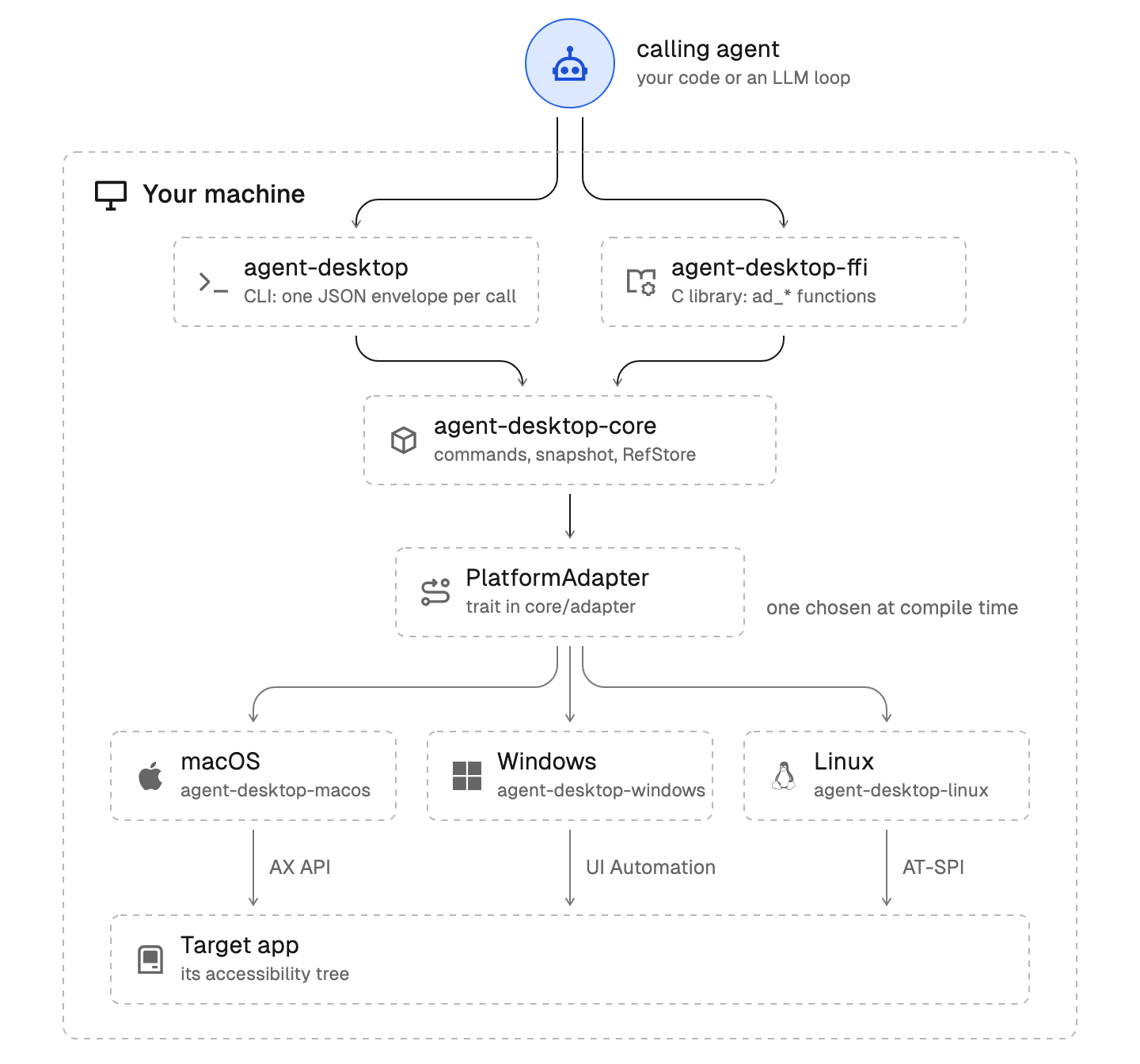
agent-desktop on macOS
Read the core skill first (agent-desktop skills get desktop) for the observe, act, verify loop. This skill covers only what is different on macOS. When a command fails, find the symptom in references/troubleshooting.md.
Requirements
The sandbox provider on macOS is macos: a macOS VM that needs an Apple Silicon Mac, macOS 13 or later, and Xcode Command Line Tools. See agent-browser.dev/desktop/sandboxes/macos.
- macOS 13 or later, Intel or Apple Silicon.
- Accessibility permission for the app that launches agent-desktop (Terminal, iTerm2, Warp, VS Code, Codex). macOS 27 and later name this list Device Control and Data Access. If System Settings lists the
agent-desktopbinary separately, grant it too. - Screen Recording permission, only for
screenshotand forsession start --screenshotsartifacts. - Automation permission for System Events, only where a command reports it missing.
First contact
- Run
agent-desktop permissions. - If a permission is denied, run
agent-desktop permissions --guide. It opens the right System Settings page with a panel that shows the user which app to drag into the list. The user confirms with Touch ID or a password, and the panel moves to the next missing permission by itself. The command returns at once with"guide": "started","already_running"or"not_needed".agent-desktop permissions --requestshows the system prompts instead. - If the guide cannot run, open System Settings > Privacy & Security > Accessibility (Device Control and Data Access on macOS 27 and later). Add the launching app and turn it on.
- Run
agent-desktop permissionsto confirmgranted. The next agent-desktop call sees a new grant, so the launching app does not need a restart. Each command reads permissions in its own process, so a permission granted during abatchapplies from the next CLI call, not to later items in that batch. - Run
agent-desktop snapshot -ito confirm. It reads the focused app.snapshot --app Finder -ireturnsWINDOW_NOT_FOUNDwhen Finder has no open window.
permissions does not prompt. permissions --request can prompt, including for Automation. permissions --guide does not prompt and covers Accessibility and Screen Recording only. Automation reports unknown when macOS would need to prompt.
What differs on macOS
Headed actions. click, right-click, type, clear and scroll use physical paths first, except a click on an item in the application's native menu bar hierarchy, which calls AXPress without moving the pointer. A headless click on these menu items also calls AXPress. Process-owned refs have no window to focus; other ref-target pointer actions focus the exact owning window and verify the hit target before delivery. A headless right-click can use AXShowMenu when the target provides it. expand, collapse, set-value, select, toggle, check, uncheck, focus and scroll-to stay semantic under --headed. double-click, triple-click, hover and drag need --headed. Raw --xy input never changes focus.
Judge delivery by observation. AX return codes do not prove an effect. Finder returns success from an AXConfirm that does nothing. Snapshot again or use get and is to check the result.
Surfaces. Use --surface menubar for an app's File, Edit, and View menus. Use --surface menu-bar-extras for status items: with no --app it reads system items such as Wi-Fi, Battery, and Clock; with --app it reads that app's own item. Use --surface dock for the Dock. These shell surfaces are available headless through open-system-surface. A background app with no ordinary window, such as a menu-bar app or Control Center, can be observed through its process with snapshot --app "Control Center". This applies to window, menubar, and menu-bar-extras, not focused; a regular app that has not shown its window returns WINDOW_NOT_FOUND. While a menu, sheet, alert, or popover is open, refs from the window tree behind it are the wrong target.
Menus. right-click headless uses AXShowMenu. If the menu opened but the app returned APP_UNRESPONSIVE with retry: unsafe, do not retry. Inspect the menu with --surface menu. menu requires an open menu: if snapshot --surface menu returns surface_absent with complete: true, snapshot menubar when it exists, click its item without --headed, then snapshot --surface menu. An absent menubar can mean the app exposes no menu bar. A missing complete, complete: false, timeout or incomplete read is unknown, not absent. For combo boxes and menu buttons, use select @ref "Option". select needs a closed-to-open menu transition, so dismiss any open menu first.
Notification Center. The notification commands drive Notification Center through accessibility, with the rules in the core commands-system reference. When agent-desktop opens the center, it closes it afterwards and restores the previous app focus. Pass both --expected-app and --expected-title on a single dismiss or action, because the stack shifts. Use wait --notification --app "App" for banners that vanish before you list them.
Chromium and Electron. agent-desktop switches on the web accessibility of a Chromium renderer automatically when it needs it. For a dense running app, use snapshot --skeleton -i --compact, then drill with --root @ref.
Identity. launch accepts a display name ("System Settings") or a bundle ID (com.apple.systempreferences). Other commands take the display name through --app, or the bundle ID or executable name (ControlCenter) when no running app has that display name. Window IDs such as w-4521 stay valid for the life of the window. Find them with list-windows.
Refs use native addresses when available. A ref turns back into the exact element it was captured from, so identical twins, such as several identical Delete buttons, each act on their own row. If the element was removed or the app restarted, the ref is STALE_REF, details.kind: retained_object_stale, and it never falls back to a search for a look-alike. When an app yields no address for an element, that ref follows the cross-platform rule instead and must have been the only element in its window with its role, native id, name and description. Take a fresh snapshot after a list changes.
Keys. The primary modifier is cmd: press cmd+c, press cmd+s. Quit shortcuts such as cmd+q, cmd+shift+q, cmd+alt+esc, ctrl+cmd+q and cmd+shift+delete return POLICY_DENIED unless you pass --force. To quit an app, use close-app. Punctuation keys work in combos, as the symbol (, . / ; ' [ ] \ - = `) or by name (comma, period, slash, semicolon, quote, leftbracket, rightbracket, backslash, minus, equal, grave). Each one is sent with the key that types it in the active keyboard layout, so press cmd+, opens Settings on ANSI and JIS keyboards alike.
Cursor overlay. cursor-overlay enable draws the agent cursor in a click-through window. It never moves the OS pointer or activates an app. The macOS motion and image limits are in the core commands-system reference.